In late October 2026 DreamHost told customers that an attacker had broken into the server behind its web File Manager and taken FTP/SFTP credentials. If you run WordPress or WooCommerce on a host that sends you a message like that, changing one password does not cover it. SFTP access means access to wp-config.php, and wp-config.php holds the keys to the database and to every login session. This is the checklist I work through for a client after a host breach: what to rotate and in which order, how to check the site with WP-CLI, and what GDPR expects from you as the shop owner in Ireland or the UK.
What happened in the DreamHost breach?
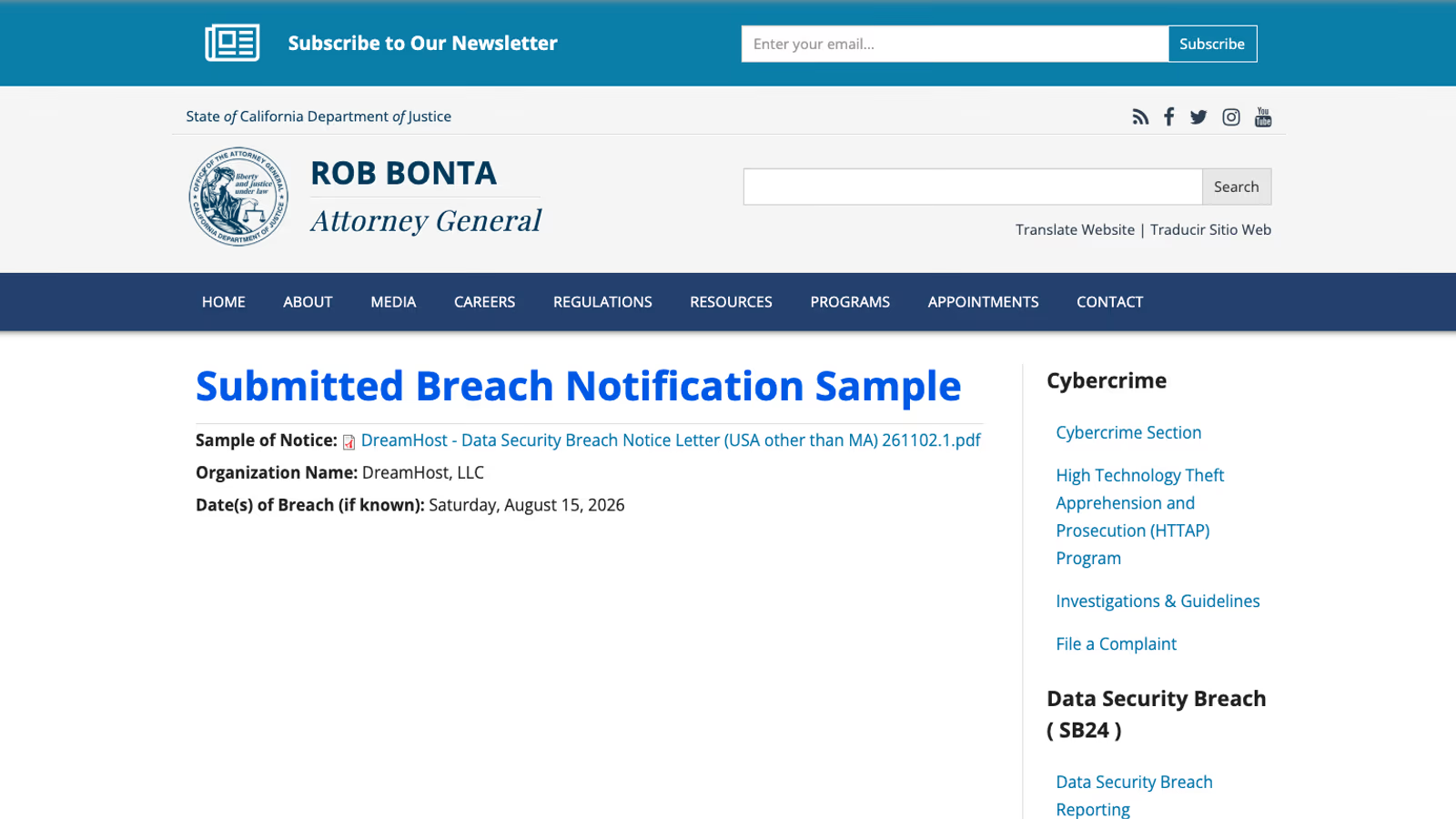
DreamHost published an announcement titled “October security incident” on 29 October 2026 and filed a notice with the California Attorney General on 2 November. TechCrunch reported on it on 4 November.
| Date | Event | Source |
|---|---|---|
| 15 August 2026 | ”Date(s) of Breach” in the California AG entry | California AG |
| August to 23 October 2026 | Window in which File Manager logins were exposed, per the letter | DreamHost letter |
| 23 October 2026, afternoon | DreamHost discovers unauthorised access to the File Manager server, takes it offline, preserves it for forensics | DreamHost |
| 23 to 25 October 2026 | Email and FTP/SFTP password resets sent Friday evening and over the weekend | DreamHost |
| 29 October 2026 | Public announcement | DreamHost |
| 2 November 2026 | Notice filed with the California AG | California AG |
| 4 November 2026 | TechCrunch article | TechCrunch |
The way in was the web File Manager at files.dreamhost.com, which is built on third-party software. The sample notice letter says: “The unauthorized third party exploited a vulnerability in that software.” DreamHost did not name the software or the vulnerability, and TechCrunch reports that a spokesperson declined to identify it. DreamHost also states: “This incident was not related to recent PHP server updates.”
What was exposed, in DreamHost’s words:
- FTP/SFTP usernames and passwords “of individuals who logged into this File Manager between approximately August 2026 and October 23, 2026”.
- For webmail, the two DreamHost texts differ. The letter says the attack “may have exposed the session information (the data that keeps a user signed in, including session credentials) of a limited number of webmail users”. The announcement calls it webmail login credentials, and says mailbox contents may have been viewed in a small number of cases.
- The letter adds: “Other information such as the contents of your email and files in the FTP/SFTP server may have also been accessed.”
DreamHost says it found “no evidence that the unauthorized third party accessed control panel login information or customer billing details”, and that it does not store full card numbers. The scale given is “well under approximately 10%” of email and FTP/SFTP accounts. The California AG filing gives no number of affected people.
The press wording is stronger than DreamHost’s. TechCrunch’s headline, by Zack Whittaker, reads “Hackers stole DreamHost customer files and inboxes during months-long attack”. DreamHost’s letter says “may have”. Whether the attacker was inside from mid-August or only collected credentials from then on is not stated in any source I read.
Why does an SFTP leak put WordPress and WooCommerce at risk?
DreamHost’s notice does not mention database passwords, SSH keys or API keys. Every WordPress site keeps its database credentials and its authentication keys and salts in wp-config.php in the site root. Anyone holding a working SFTP login for the site can download that file. With the database password they can read the WooCommerce tables: customer names, addresses, order history. With the keys and salts they can, in principle, forge login cookies. That is my inference from how WordPress works, not something DreamHost has said happened. But it is why I treat “your SFTP credentials were exposed” as “everything in wp-config.php was exposed”.
The same applies to any secrets stored in files: payment gateway keys in a plugin’s config, an .env file, a backup ZIP sitting in the web root. Look for them before you assume the database is the only thing to protect.
What should you change first after your host is hacked?
Order matters, because some secrets give access to the others. A changed WordPress password is no use if the attacker can still reset it through a mailbox they control, or still read the new database password through SFTP.
| Step | What to change | Why this position | Source |
|---|---|---|---|
| 1 | Scan your own computer | Trojans on a local machine sniff FTP and wp-admin logins; new passwords typed on it may leak again | WordPress.org FAQ |
| 2 | Host control panel password | It can reset everything else | DreamHost guidance |
| 3 | SFTP, FTP and SSH passwords, for every user | The leaked credentials | DreamHost, WordPress.org FAQ |
| 4 | Mailbox passwords, forwarding rules and filters | wp-admin password reset links arrive here | DreamHost guidance |
| 5 | Database user password, then wp-config.php | Readable through SFTP | WordPress.org FAQ |
| 6 | Authentication keys and salts | Logs out every existing session | wp-config docs |
| 7 | Administrator accounts and their passwords | Look for accounts you did not create | WP-CLI docs |
| 8 | Application passwords | They bypass the normal login form | Application passwords guide |
| 9 | WooCommerce REST API keys | Integrations hold full shop access | WooCommerce REST API docs |
| 10 | Stripe secret keys and webhook signing secret | Stored in the database or plugin settings | Stripe keys, Stripe webhooks |
| 11 | All of the above again, once the site is clean | The first change may have happened while the site was still compromised | WordPress.org FAQ |
Steps 1 to 4: your computer, the panel, SFTP and email
The WordPress.org FAQ asks you to change “all access points … FTP / SFTP, WP-ADMIN, CPANEL (or any other administrator panel you use with your host) and MYSQL” for every user who has access. It also recommends a full antivirus scan of your own machine first. I do that before typing a single new password.
DreamHost’s own instructions for its customers are worth copying for any host:
- Change passwords in the control panel. At DreamHost only the account holder can do it, and changes can take up to 15 minutes to apply.
- Treat FTP/SFTP credentials used in the File Manager during the window as compromised, and change the same or a similar password on any other account.
- Update email, FTP and SFTP clients that store the old password.
- Review email account settings, including “forwarding rules and filters”, for changes you did not make.
- Think about whether the contents of your emails or files give access to other accounts, and review those.
- Ignore unsolicited password reset emails. DreamHost “will never ask you for your password by email”.
The forwarding rule check is easy to skip. An attacker who adds a quiet forward from your shop mailbox to an outside address receives every password reset, every order notification and every payment provider alert you get, and the change survives a password reset.
Steps 5 and 6: the database password and the salts
The WordPress.org FAQ says: “You may consider to change the database user account and password. When you changed them, do not forget enhancing them to wp-config.php file.” Change the password for the database user in your host’s panel, then put the new value in DB_PASSWORD in wp-config.php straight away, or the site goes down.
Then refresh the keys and salts. With WP-CLI:
wp config shuffle-saltsThe WP-CLI documentation describes it as “Refreshes the salts defined in the wp-config.php file.” Without WP-CLI, generate a new set at https://api.wordpress.org/secret-key/1.1/salt/ and replace the block in wp-config.php by hand. The WordPress developer docs put the effect plainly: you can change these “to invalidate all existing cookies. This does mean that all users will have to login again.” On a WooCommerce shop that includes logged-in customers, so do it outside your busiest hours.
Steps 7 and 8: admin users and application passwords
List every administrator:
wp user list --role=administratorThe default output includes user_registered, so an account created during the breach window stands out. Delete accounts you cannot account for, and reset the passwords of the ones you keep.
Application passwords let scripts and apps log in through the REST API without the normal form. WordPress records their last use with “date and IP address”, accurate to within 24 hours. Review them on each user’s profile, or with WP-CLI:
wp user application-password list <user>
wp user application-password delete <user> <uuid>
Revoke anything you do not recognise, and anything that was used from an IP address you cannot place.
Step 9: WooCommerce REST API keys
Accounting tools, ERP connectors, marketplace sync and shipping apps often connect to WooCommerce with REST API keys. Those keys are stored in the database. Go to WooCommerce, Settings, Advanced, REST API, use “Revoke Key” on each one, and issue new keys to each integration. Keep a list as you go, because every integration you forget will fail silently until someone notices missing orders.
Step 10: Stripe keys and the webhook secret
If your shop takes payments through Stripe, the secret or restricted key sits in your plugin settings, which means in the database. Stripe’s documentation says to rotate “If a secret or restricted API key is compromised”. When you rotate in the Dashboard, the old and new key both keep working “for up to 7 days” so you can deploy the new one without downtime. If you believe the old key is in an attacker’s hands, choose expiration “Now” and update the plugin settings immediately. Stripe also lets you apply access policies by IP or ASN to live keys, which limits where a stolen key can be used from.
The webhook signing secret is separate. Stripe’s webhook docs recommend you “roll (change) secrets periodically, or when you suspect a compromised secret”. After you roll it, the old secret can stay valid for “up to 24 hours”. Update the secret in your WooCommerce Stripe settings, then send a test event to confirm the shop still accepts webhooks, or orders will stay pending.
The same logic applies to any other gateway: PayPal API credentials, bank payment plugins, anything with a key in the database. I have not found an official WordPress or WooCommerce page that lists payment keys in a post-breach checklist. Their place here follows from the fact that the database was readable.
How do you check whether WordPress was modified?
Rotating credentials leaves in place anything the attacker already planted, so check the files before step 11.
wp core verify-checksums --include-root
wp plugin verify-checksums --all
wp core verify-checksums “Verifies WordPress files against WordPress.org’s checksums” (docs). The --include-root flag also warns about files in the root that are not part of WordPress, which is where dropped web shells often sit. wp plugin verify-checksums --all does the same for plugins from the WordPress.org directory (docs), and --strict also flags changed readme files.
Premium plugins, custom plugins and your theme are not on WordPress.org, so they have no checksums to compare against. Download a fresh copy of each from the vendor and diff it against what is on the server.
The WordPress.org FAQ lists the files I always open by hand: .htaccess in the root and in subdirectories, index.php, and the theme’s header.php, footer.php and functions.php. It also recommends replacing /wp-admin and /wp-includes with clean copies of the same WordPress version.
If any of this turns up injected code, the site is infected and needs cleaning before anything else. My malware removal guide for hacked WordPress sites covers that procedure. Finish the cleanup, then do step 11: change the passwords again. The WordPress.org FAQ is explicit: “if you only changed them when you discovered the hack, change them again now”.
Do you have to report a hosting breach under GDPR?
For a WooCommerce shop the host is your processor and you are the controller. The duty to tell the regulator and your customers sits with you, not with the host. The host’s duty is to tell you. The relevant provisions of the GDPR:
| Article | What it says | Who it binds |
|---|---|---|
| 28(3)(f) | The processor “assists the controller in ensuring compliance with the obligations pursuant to Articles 32 to 36” | Host |
| 33(2) | “The processor shall notify the controller without undue delay after becoming aware of a personal data breach.” | Host |
| 33(1) | Notify the supervisory authority “without undue delay and, where feasible, not later than 72 hours after having become aware of it”, unless the breach is unlikely to result in a risk to individuals; a late notice needs reasons | You |
| 34(1) | Tell the people affected “without undue delay” when the breach “is likely to result in a high risk” | You |
| 33(5) | Document every breach, its effects and the remedial action, whether you notify or not | You |
When does the 72-hour clock start?
The EDPB’s Guidelines 9/2022 on personal data breach notification answer this at paragraph 44: “in principle, the controller should be considered as “aware” once the processor has informed it of the breach.” Paragraph 31 defines aware as “a reasonable degree of certainty that a security incident has occurred that has led to personal data being compromised.” The processor does not assess the risk on your behalf; you do.
Applied to DreamHost, my reading is that the clock in principle starts when the host’s notice reached you: the password reset email of 23 to 25 October, or the formal letter. It does not start on 15 August, when the attacker may first have got in. That is my interpretation of the guidelines, not a regulator’s ruling on this case.
Is it a notifiable breach for your shop?
That depends on what the leaked credentials could reach. SFTP credentials that open wp-config.php, and through it a WooCommerce database with customer orders, point towards a breach you should notify. A brochure site with no customer data and no contact form entries in the database may only need the internal Article 33(5) record. Write the assessment down either way, with the date you learned of the breach and why you decided as you did.
Ireland: the Data Protection Commission
In Ireland the supervisory authority is the Data Protection Commission. Its breach notification guidance says: “Organisations must do this within 72 hours of becoming aware of the breach.” Notification goes through the DPC’s Breach Notification Form. If you decide the breach poses no risk and do not notify, the DPC expects you to keep an internal record of that decision.
United Kingdom: UK GDPR Article 33
In the UK the rules come from UK GDPR. Article 33 on legislation.gov.uk keeps the same structure: the controller notifies within 72 hours, and the processor notifies the controller “without undue delay”. The current text says the controller notifies “the Commission”. legislation.gov.uk notes that this word was substituted on 30 September 2026 by S.I. 2026/386, regulations made under the Data (Use and Access) Act 2025.
I could not confirm the regulator’s current name or its breach reporting page after that change, because the ICO website refused every request I made. Before you report, open the regulator’s site yourself and use the reporting route it gives. The 72-hour deadline in the statute is the part you can rely on now.
What should a UK or Irish shop owner do this week?
- Check your inbox and spam folder for any security notice or forced password reset from your host, and note the date it arrived. That date matters for the 72 hours.
- Work through steps 1 to 10 in the table, in order.
- Run the WP-CLI checks, and diff premium plugins and the theme against vendor copies.
- Decide whether the breach is notifiable, write the Article 33(5) record, and notify the DPC or the UK regulator if it is.
- Once the site is confirmed clean, change every password again.
- Ask your host in writing what was accessed for your account specifically. DreamHost points customers to its support form under the topic “Account security”.
Next step
If your shop runs on WooCommerce and you want someone to work through this checklist with you, or to keep the site maintained so the next host incident is a routine rotation, see how I work as a WooCommerce developer. If you are weighing a move to a hosted platform where the provider carries server security, read how I work as a Shopify developer.