Why you should update WordPress
Learn more about WordPress development services at WPPoland.
In the WordPress ecosystem, “updating” is often viewed as a chore: something you do to clear a notification bubble. But from a security and engineering perspective, it is the single most critical maintenance task. Running an outdated instance isn’t just “unoptimized”; it’s an open invitation to automated botnets that crawl millions of sites looking for vulnerable versions.
The question was never “is it worth updating WordPress”. The real question is “can I afford the risk of running software with known vulnerabilities”. The cost of a hacked site (SEO penalties, data loss, cleanup fees, reputational damage) always dwarfs the 15 to 20 minutes required to manage updates responsibly.
What are the risks of not updating WordPress
Many site owners fear updates will break their site. While possible, the alternative is guaranteed degradation. Here are the three main risks of not updating.
Known vulnerability exploitation
When a security patch is released, for example for a Cross-Site Scripting (XSS) or SQL injection flaw, the vulnerability becomes public knowledge. Attackers read those diffs and feed them into bots that scan millions of sites for the unpatched version. This happens within hours, not days.
WordPress is the most popular CMS in the world and runs 40.0% of all websites according to W3Techs (accessed 14 Oct 2026). That makes it the number one target for automated attacks. Every new release contains security fixes that reveal exactly where the flaws were in the previous version. If you don’t update, you are exposing those exact vulnerabilities to everyone.
The most common attacks against outdated WordPress sites are malware injection, hidden spam pages for pharma SEO, redirecting visitors to malicious sites, and stealing data from contact forms or WooCommerce customers. A single successful attack can take weeks to clean up completely and cost thousands of euros in specialist work.
PHP version rot
Older WordPress versions force you to stay on PHP versions that have reached end of life (EOL). PHP 7.4 stopped receiving security patches in November 2022. PHP 8.0 reached EOL in November 2023. Every PHP version that falls out of support stops receiving security fixes, so the security failure cascades from the application down to the runtime.
If your WordPress version is not compatible with PHP 8.2 or newer, you are running the site on a foundation with known security holes in both the application and the runtime.
Modern PHP 8.x branches also bring engine and memory management improvements that show up in applications like WordPress. By pinning your site to old versions, you are voluntarily running slower code when a direct, free alternative exists.
Performance and compatibility atrophy
WordPress changes constantly. Each new release brings core performance work, new developer APIs, better support for modern web standards and database optimizations. If you don’t update, you miss all of these cumulative improvements.
Popular plugins and themes eventually drop support for old WordPress versions too. That means your plugins can’t be updated either, which creates a domino effect where every component of the site becomes progressively more outdated and more vulnerable. All of this feeds into user experience and your Core Web Vitals scores.
Where WordPress vulnerabilities actually are
Patchstack’s annual report on 2024, State of WordPress Security in 2025, counts 7,966 new vulnerabilities in the WordPress ecosystem that year. The split shows where the risk sits:
| Component | Vulnerabilities in 2024 |
|---|---|
| Plugins | 96% of the total |
| Themes | 4% of the total |
| WordPress core | 7 vulnerabilities |
The same report notes that 33% of vulnerabilities had no fix at the time of public disclosure, many of them in abandoned plugins that will likely never be patched, and that it is common for a vulnerability to be exploited within hours of disclosure.
Two practical conclusions. First: updating core alone is not enough, because almost all of the risk lives in extensions. Second: a plugin that has not seen a release in a long time is not “stable”, it is a candidate for an unfixed vulnerability. Checking the date of each plugin’s last release is as much part of maintenance as clicking “Update”.
Which WordPress versions still get security fixes
WordPress.org’s security page states that only the latest version of WordPress is officially supported. The security team backports fixes to older branches as a courtesy, so that sites that have not moved to the latest major version still receive critical patches through auto-updates.
Two dated examples show how this works:
- WordPress 6.4.3 (30 January 2024) fixed a PHP file upload bypass via the plugin installer (requiring admin privileges) and an RCE POP chains vulnerability. It also shipped 5 core bug fixes and 16 block editor fixes, and the patches were backported to every branch from 4.1 onwards (release post).
- WordPress 6.5.5 (24 June 2024) fixed two XSS vulnerabilities (one in the HTML API, one in the Template Part block) and a path traversal issue affecting sites hosted on Windows (release post).
Both posts note that on sites with automatic background updates, the update process starts on its own. That is the strongest argument for never switching off minor updates: the patch arrives even if nobody logs into the dashboard.
How to update WordPress without breaking your site
The fear of breaking the site is valid, but the solution isn’t “don’t update”, it’s “update safely”. There are proven protocols that keep the risk of any update low.
Test updates on a staging environment
Never update major versions (for example WordPress 6.4 to 6.5) directly on production. Use a staging environment. Most modern hosts (Kinsta, WP Engine, SiteGround, Cloudways) offer one-click staging.
The correct process:
Clone to staging. Create an exact copy of the site in staging, including the database, media files, plugins and configuration.
Update on staging. Run all updates (WordPress core, plugins, themes) on staging, in order, starting with core.
Test critical flows. Walk through the flows that matter most: contact forms, WooCommerce checkout, user registration, site search, key landing pages. Confirm everything works.
Check the browser console. Open the browser developer tools and make sure there are no JavaScript errors. Plugin conflicts often show up as JS errors that break frontend functionality.
Push to live. Only when everything works on staging, apply the same changes to production. If your host offers a staging-to-production push, use it.
Visual regression testing
For critical business sites, “eye-balling” it isn’t enough. Automated visual regression tools compare screenshots of your site before and after updates to catch subtle layout breaks that a quick glance might miss.
Tools such as Percy or BackstopJS detect pixel-level changes in the layout that a human would miss in a quick review. A button that moved 5 pixels, a changed margin, an altered colour: these details matter when the site generates revenue.
Visual regression matters most after updating themes or page builders such as Elementor, Divi or WPBakery, because those tools control the visual output of every page.
Update plugins individually
Don’t click “Update All”. Update plugins one by one and check the site after each. If a specific plugin breaks the site, you know exactly which culprit to roll back.
The recommended order:
WordPress core first. Update WordPress before anything else, because plugins usually declare compatibility against the latest core release.
Critical plugins next. Caching, security and SEO plugins come next, with a check after each one.
Secondary plugins after that. Contact forms, sliders, social integrations and similar.
The theme last. Updating the theme at the end lets you confirm there are no conflicts with the already updated plugins.
After each individual update, open the browser console (F12) and look for JavaScript errors. A JS error can signal a conflict that breaks frontend features without being visually obvious at first glance.
Back up before any update
Before you start any update, make sure you have a complete, verified backup. That means both the database and the files on the server. Plugins such as UpdraftPlus, BlogVault or Duplicator can automate this.
The backup has to be restorable. Having a backup is not enough if you have never tested that it works. Schedule a test restore at least once a quarter to confirm your backups actually function.
What WordPress does when a plugin update fails
For a few releases now, core has had two safety nets for extension updates. It is worth knowing what they cover and what they don’t, because neither replaces a backup.
WordPress 6.3: restore after a failed manual update. According to the 6.3 dev note, before updating a plugin or theme WordPress moves the installed version to wp-content/upgrade-temp-backup/plugins/ or wp-content/upgrade-temp-backup/themes/. If installing the package fails (empty package, the destination folder can’t be cleared or created), the previous version is moved back. If the update succeeds, the backup is deleted. This feature does not detect a PHP fatal error that appears after a successful install, and the folder is not a way to go back later.
WordPress 6.6: rollback of automatic plugin updates. The 6.6 field guide lists automatic rollback of plugin auto-updates upon detecting PHP fatal errors. The merge proposal describes the mechanism: after the update, WordPress sends a loopback request to the homepage; if it detects a fatal error, it restores the previous plugin version and notifies the admin email address. The site stays in maintenance mode while automatic updates run, and the rolled-back plugin is retried at the next update check.
The important limitation is the loopback request. If the server blocks it (a firewall rule or HTTP authentication, for example), the proposal says it is treated as a fatal error and the update is reverted. A plugin that breaks only the checkout or an inner page also goes unnoticed, because the check runs against the homepage. That is why shops still need manual checkout tests.
What happens if I don’t update WordPress
Scenario 1: hacked site with SEO spam injection
One of the most common attacks on outdated WordPress sites is SEO spam injection. Attackers create thousands of hidden pages inside your site selling pharmaceuticals, pirated software or gambling services. Google indexes them and associates your domain with spam.
The result can be a Google manual action or a sharp drop in organic traffic. Recovery takes a full technical cleanup, a reconsideration request to Google and weeks or months of waiting for the search engine to trust the domain again.
Scenario 2: customer data leak in WooCommerce
An unpatched WooCommerce site can have vulnerabilities that expose the customer database. Names, addresses, emails and even partial payment data can leak. On top of the legal obligations under the GDPR (fines of up to 4% of worldwide annual turnover), the reputational damage is hard to quantify.
Scenario 3: site completely down
In the worst case, an attacker takes full control of the server, deletes critical files and leaves the site completely offline. Without a recent backup, rebuilding can take days or weeks, with total loss of content, configuration and customer data.
Automatic vs manual updates
WordPress lets you configure automatic updates for core, plugins and themes. The question is when automation makes sense and when manual control is the better choice.
When to enable automatic updates
Minor security releases (for example WordPress 6.5.1 to 6.5.2) are ideal candidates for automation. They focus on security patches and small bug fixes, with minimal risk of breaking compatibility.
For small sites such as personal blogs, portfolios or brochure sites without ecommerce, automatic plugin updates can be acceptable, as long as an automatic backup system runs alongside them.
When to update WordPress manually
WooCommerce stores, sites with custom API integrations, sites with premium plugins that change core behaviour and any site that earns revenue directly should run on supervised manual updates.
Major WordPress versions (6.4 to 6.5, for example) should always be applied manually and on staging first, because they can bring significant API changes, removed deprecated functions or changes in block editor behaviour.
How to configure WordPress automatic updates
The official documentation (Upgrading WordPress) explains that automatic background updates arrived in WordPress 3.7 and distinguishes four types: core (development, minor and major), plugins, themes and translation files.
The defaults are:
- Minor core updates and translation files are enabled by default.
- Since WordPress 5.6, new installs also get major core updates automatically, unless a version control checkout is detected.
- Plugins and themes update on their own only in special cases decided by the WordPress.org API, or when the administrator turns it on.
That per-plugin and per-theme toggle arrived with WordPress 5.5, released on 11 August 2020: since then you switch auto-updates on or off for each extension on the same Plugins and Themes screens (5.5 release post).
To pin the policy in code, wp-config.php accepts these constants:
// Minor core updates only (security and maintenance)
define( 'WP_AUTO_UPDATE_CORE', 'minor' );

// true: development, minor and major; false: none of the three
// define( 'WP_AUTO_UPDATE_CORE', true );

// Disables all automatic updates (not recommended)
// define( 'AUTOMATIC_UPDATER_DISABLED', true );
For finer control there are the auto_update_plugin and auto_update_theme filters, and for core allow_major_auto_core_updates and allow_minor_auto_core_updates. A sensible setup for a shop: WP_AUTO_UPDATE_CORE set to 'minor', auto-updates only on low-risk plugins, and everything that touches payments or orders updated manually after staging. Switching everything off with AUTOMATIC_UPDATER_DISABLED cuts the site off from the patches the security team ships through exactly that channel.
How often to update WordPress
The right cadence depends on the type of site and the resources you have:
Critical security patches: immediately, within the first 24 to 48 hours of release. These are the updates that close actively exploited vulnerabilities.
Minor WordPress releases: within the first week. These releases are usually stable and focus on bug fixes.
Plugin updates: every two weeks is a good cadence for mid-sized sites. It lets you batch several updates and test them together on staging.
Major WordPress releases: waiting 1 to 2 weeks after release is prudent. It gives the community time to surface early issues and plugin developers time to ship compatibility updates.
Premium theme updates: read the changelog before updating. Themes with built-in visual builders can change how existing components behave.
Which PHP version to run with WordPress in 2026
The WordPress requirements page recommends PHP 8.3 or greater, MySQL 8.0 or MariaDB 10.11 or greater, and HTTPS support. The technical minimum is lower: the WordPress.org version check API offers WordPress 7.1.3 with a minimum of PHP 7.4. WordPress running on PHP 7.4 does not make that PHP safe. The official PHP schedule (supported versions and unsupported branches) looks like this:
| PHP version | End of security support |
|---|---|
| 7.4 | 28 November 2022 |
| 8.0 | 26 November 2023 |
| 8.1 | 31 December 2025 |
| 8.2 | 31 December 2026 |
| 8.3 | 31 December 2027 |
| 8.4 | 31 December 2028 |
| 8.5 | 31 December 2029 |
In October 2026 that means PHP 8.1 no longer receives patches and PHP 8.2 receives them only until the end of the year. A site running on 8.2 today should already plan the move to 8.3 or 8.4 on staging. The practical order: update WordPress, plugins and theme to versions that declare compatibility, test on staging with the new PHP version, and only then switch PHP on production.
The critical PHP security release of 21 October 2026 is covered in the WordPress hardening guide, and the steps for site owners are in what to do about PHP2Shell on a WordPress site.
What recent WordPress releases added
A site that stays several versions behind loses more than patches. A few changes with dates and official sources:
- WordPress 6.5 (2024) added AVIF support: you can upload, edit, resize and save AVIF images if the server’s image library (Imagick or GD) supports it, and Site Health shows whether it is available (dev note).
- WordPress 6.6 (16 July 2024) added the automatic rollback of plugin auto-updates described above.
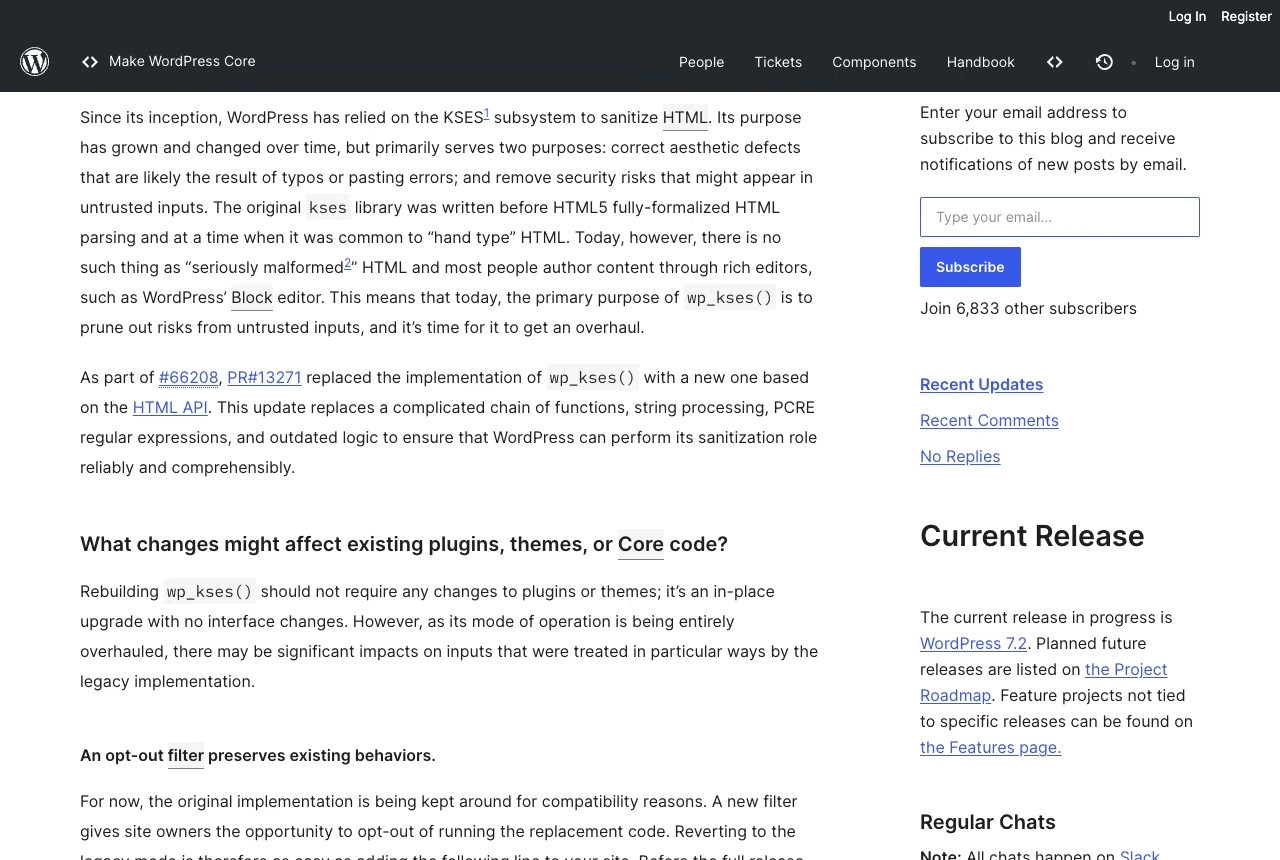
- WordPress 6.8 (2025) enabled speculative loading on the frontend: core prefetches URLs with conservative eagerness, except for logged-in users or sites without pretty permalinks, and the behaviour is adjustable with the
wp_speculation_rules_configurationfilter (dev note). - WordPress 6.9 (December 2025) introduced the Abilities API, a registry where core and plugins declare which actions they can perform, with schemas and permission checks.
Modern plugins are starting to depend on these APIs. A site pinned to an old version eventually can’t update those plugins, and so loses their security fixes too. If you are still running WordPress 5.x or early 6.x, the gap to a current installation is measured in years of security patches, performance work and features.
The SEO impact of not updating
Google has confirmed that page experience, including speed, is part of its ranking signals. Old WordPress versions running on outdated PHP are slower. That affects Core Web Vitals, especially LCP (Largest Contentful Paint) and INP (Interaction to Next Paint).
A site hacked because it was not updated can also be flagged as compromised in Google’s search results, which sinks the CTR. Modern browsers show security warnings when they detect malware, which scares visitors away before they ever interact with your content.
Keeping WordPress updated is one of the simplest technical SEO actions with the biggest impact.
How to update several WordPress sites at once
If you manage several WordPress sites, updating each one by hand is not viable. These tools centralise update management:
ManageWP manages updates for dozens or hundreds of sites from one dashboard, with automatic backups before each update and visual checks afterwards.
MainWP is a self-hosted alternative that runs as a plugin on a central WordPress site and controls updates on all your child sites.
InfiniteWP offers similar features aimed at agencies managing large numbers of sites.
These tools let you schedule updates, apply selective updates, generate client reports and roll back changes when something goes wrong.
Step-by-step WordPress update checklist
For a clean, repeatable process, follow this protocol every time you update:
Confirm a recent backup. Make sure you have a complete backup of the site (database and files) no older than 24 hours.
Read the changelogs. Read the release notes for WordPress, plugins and themes before updating. Look for changes that could affect critical features of your site.
Clone to staging. If your host allows it, clone the site to a test environment.
Update core first. Apply the WordPress update before any plugin or theme.
Update plugins one by one. Check that the site works after each plugin.
Update the theme. If a theme update is available, apply it last.
Test critical flows. Browse the main pages, test the forms, test checkout if you have one.
Check the JS console. Open DevTools and confirm there are no new JavaScript errors.
Apply to production. If everything works, repeat the process on the live site.
Monitor for 24 to 48 hours. Watch server logs, traffic stats and error reports over the next two days.
Summary
The question isn’t “is it worth updating”; that’s the wrong framework. Updating is a minimum maintenance requirement, not an option. The cost of not updating is far higher than the cost of running an orderly update protocol.
Updates protect against known vulnerabilities, keep the site compatible with PHP versions that still receive patches, improve performance, keep plugins and themes compatible and support better search rankings.
The risk of breaking something during an update exists, but a proper protocol cuts it down: staging, verified backups, individual updates and visual regression testing. The risk of not updating has no mitigation, only consequences.