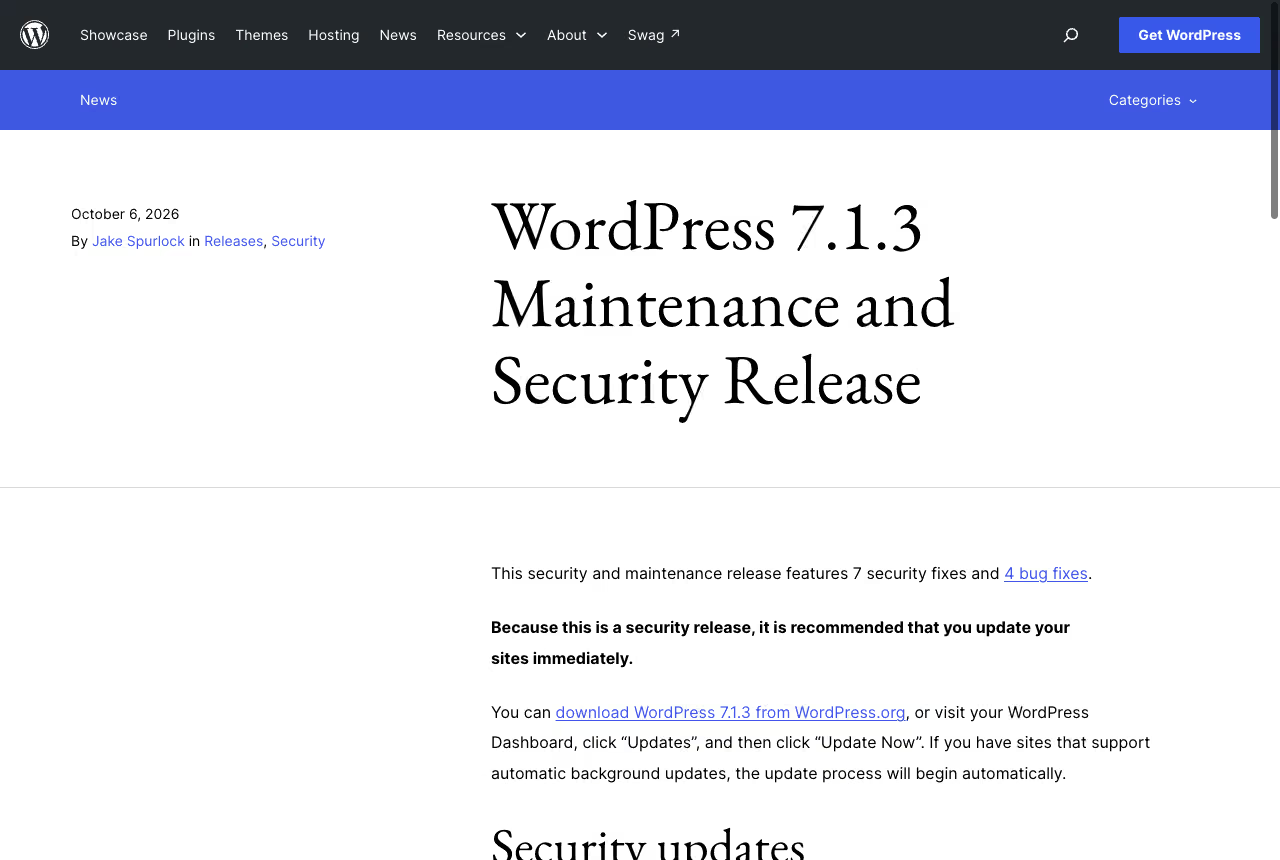
In the world of cybersecurity, there is a concept known as reconnaissance.
Before a hacker (or an automated bot) attacks your site, they scan it. They look for low-hanging fruit. If your website announces “WordPress 5.8.1” in its source code, the scanner knows exactly which published vulnerabilities applied to 5.8.1 and which patches you may have missed.
This guide goes beyond simple “Hide Version” plugins. It covers security through obscurity (and why it is only the first layer of defense), the headers WordPress itself sends, and then real server-level hardening with HTTP headers, login protection and file permissions.
Is security through obscurity enough for WordPress
What is security through obscurity
Security through obscurity is the practice of hiding information about your system to make it harder for attackers to find vulnerabilities. It is controversial in security circles, but combined with proper security measures it adds an extra layer of defense.
The debate:
- Critics say: “A system should be secure even if attackers know everything about it”
- Practitioners say: “Why make it easier for attackers by broadcasting your vulnerabilities?”
In practice: security through obscurity is not sufficient on its own, but it is a useful first layer. It will not stop a determined attacker, but it takes your site out of the simplest mass scans that match a version string against a CVE list.
Why hiding WordPress version matters
WordPress core vulnerabilities are publicly documented. When a security release ships, the release notes state which versions are affected. By displaying your version number, you tell attackers:
- Which known vulnerabilities might exist on your site
- Whether you have applied the latest security patches
- Which specific exploit code might work against you
Common version leakage points:
- HTML meta generator tag
- RSS/Atom feed generator tags
- Script and style query strings (
?ver=6.7.1) readme.htmlfile in the root directory
How to hide WordPress version number
The generator meta tag
By default, WordPress injects a meta tag into the <head> of your HTML:
<meta name="generator" content="WordPress 6.7.1" />This is useless for SEO and dangerous for security. Core prints it through the wp_generator callback on wp_head, and the same the_generator callback runs on every feed head (rss2_head, commentsrss2_head, rss_head, rdf_header, atom_head, comments_atom_head, opml_head, app_head), as listed in wp-includes/default-filters.php.
PHP snippet to remove the WordPress version
Do not install a heavyweight plugin just for this. Put the code in a must-use plugin (wp-content/mu-plugins/hardening.php), so it survives a theme switch:
<?php
/**
 * Plugin Name: WPPoland hardening
 * Description: Removes the core version from head, feeds and core assets.
 */

// Generator tag in <head>
remove_action('wp_head', 'wp_generator');

// Generator tag in every feed type: one filter covers all of them
add_filter('the_generator', '__return_empty_string');

// Really Simple Discovery link (only needed by XML-RPC clients)
remove_action('wp_head', 'rsd_link');

/**
 * Remove ?ver= only when it equals the core version.
 * Plugins and themes keep their own version strings for cache busting.
 */
function wppoland_strip_core_version(string $src): string {
    global $wp_version;

    $query = parse_url($src, PHP_URL_QUERY);
    if (!$query) {
        return $src;
    }

    parse_str($query, $args);
    if (isset($args['ver']) && $args['ver'] === $wp_version) {
        return remove_query_arg('ver', $src);
    }

    return $src;
}
add_filter('style_loader_src', 'wppoland_strip_core_version', 9999);
add_filter('script_loader_src', 'wppoland_strip_core_version', 9999);
Many copies of this snippet also remove wlwmanifest_link. That function has been deprecated since WordPress 6.3.0, because the Windows Live Writer manifest is no longer included in core, so the line does nothing on a current install.
Why the selective filter matters: Many snippets strip every ver parameter from every asset. That breaks cache busting: after a plugin update the URL stays the same and browsers and CDNs keep serving the old file. Comparing the value with $wp_version hides the core version and leaves plugin and theme versions alone.
Important note: this is security through obscurity. It is the first layer, not the only layer. A determined attacker can still fingerprint WordPress through other methods (REST API endpoints, file structure, and the headers described in the next section).
Block readme.html and license.txt
readme.html and license.txt sit in the web root of every install. Block them in the web server, so the request never reaches PHP.
Apache 2.4 (.htaccess):
<FilesMatch "^(readme\.html|license\.txt)$">
  Require all denied
</FilesMatch>
Nginx:
location ~* ^/(readme\.html|license\.txt)$ {
    deny all;
}
The old Order deny,allow / Deny from all syntax belongs to Apache 2.2. On Apache 2.4 it only works through mod_access_compat, so use Require all denied.
Which HTTP headers reveal WordPress besides the generator tag
The generator tag is not the only fingerprint. Core and PHP add response headers that tell a scanner which software runs the site, even when no version number is printed anywhere.
| Header | Sent by | When |
|---|---|---|
Link: <https://example.com/wp-json/>; rel="https://api.w.org/" | rest_output_link_header(), since WordPress 4.4.0 | every front-end request, on template_redirect (priority 11) |
Link: <https://example.com/?p=123>; rel=shortlink | wp_shortlink_header() | single posts and pages, on template_redirect (priority 11) |
X-Pingback: https://example.com/xmlrpc.php | WP::send_headers() | single posts that accept pings (pings_open()), conditional since 4.4.0 |
X-Powered-By: PHP/8.3.x | PHP itself | while expose_php is on, which is the default |
Sources: the rest_output_link_header reference, the WP::send_headers reference and the PHP core ini documentation.
The WordPress headers come off with the same hooks that add them. The X-Pingback header goes through the wp_headers filter, which core describes as filtering the HTTP headers before they are sent to the browser:
// REST API discovery: header and <link> tag
remove_action('template_redirect', 'rest_output_link_header', 11);
remove_action('wp_head', 'rest_output_link_wp_head', 10);

// Shortlink: header and <link> tag
remove_action('template_redirect', 'wp_shortlink_header', 11);
remove_action('wp_head', 'wp_shortlink_wp_head', 10);

// X-Pingback on single posts
add_filter('wp_headers', function (array $headers): array {
    unset($headers['X-Pingback']);
    return $headers;
});
Removing the discovery link does not switch off the REST API: /wp-json/ still answers, and the block editor depends on it. The point is to stop advertising the CMS on every HTML response, not to break the API.
X-Powered-By cannot be changed from WordPress. The PHP manual lists expose_php as a php.ini-only setting, so ini_set() has no effect. Set it in the PHP-FPM pool or the main php.ini:
expose_php = OffThe OWASP HTTP Headers Cheat Sheet recommends removing every X-Powered-By header and either removing Server or giving it a non-informative value. It also notes that attackers can still fingerprint the stack by other means, which is the honest limit of this whole section.
HTTP security headers for WordPress
Hiding the version is like taking the house number off your door. It helps, but it does not lock the door. HTTP security headers are the deadbolts.
Browsers enforce these policies only when the server sends them. Without them you rely on browser defaults against cross-site scripting (XSS), clickjacking and data leaks.
Set them in the web server, not in PHP. A full-page cache (Nginx FastCGI cache, Varnish, a CDN) serves stored responses without running PHP, so a header() call in a theme does not reach anonymous visitors.
1. X-Frame-Options (clickjacking protection)
This header tells the browser: “Do not allow other sites to put my page inside an <iframe>.” This prevents attackers from loading your login or checkout page in an invisible frame and capturing clicks.
Implementation (.htaccess):
<IfModule mod_headers.c>
  Header always set X-Frame-Options "SAMEORIGIN"
</IfModule>
Nginx:
add_header X-Frame-Options "SAMEORIGIN" always;Options:
DENY: the page cannot be displayed in a frameSAMEORIGIN: the page can only be displayed in a frame on the same originALLOW-FROM uri: obsolete. MDN states that modern browsers that see this directive ignore the whole header; use CSPframe-ancestorsinstead
MDN also warns that X-Frame-Options set through <meta http-equiv> has no effect. It only works as an HTTP header.
2. X-Content-Type-Options
Prevents MIME sniffing. If an attacker uploads a .jpg file that actually contains JavaScript, this header tells the browser: “The server said it is an image, so treat it as an image, do not execute it.”
Implementation:
<IfModule mod_headers.c>
  Header always set X-Content-Type-Options "nosniff"
</IfModule>
Nginx:
add_header X-Content-Type-Options "nosniff" always;3. Strict-Transport-Security (HSTS)
This is critical for TLS. It forces the browser to always use HTTPS, even if the user types http://. It prevents downgrade and man-in-the-middle attacks on public Wi-Fi, after the first secure visit.
Implementation (only with a valid certificate on every subdomain):
<IfModule mod_headers.c>
  Header always set Strict-Transport-Security "max-age=31536000; includeSubDomains; preload"
</IfModule>
Nginx:
add_header Strict-Transport-Security "max-age=31536000; includeSubDomains; preload" always;What the parameters mean:
max-age=31536000: the browser remembers the policy for 1 yearincludeSubDomains: apply to all subdomains (e.g., blog.yoursite.com)preload: a request to be included in the browser preload list, with the consequences described below
Warning: once you set this header, browsers refuse to connect via HTTP for the specified duration. Make sure HTTPS works on every host before implementing HSTS.
4. Content-Security-Policy (CSP)
This is the most powerful header. It tells the browser: “Only execute scripts from these trusted sources.”
Basic implementation:
<IfModule mod_headers.c>
  Header always set Content-Security-Policy "default-src 'self'; script-src 'self' 'unsafe-inline' https://www.google-analytics.com; style-src 'self' 'unsafe-inline'; img-src 'self' data: https:; font-src 'self' data:; frame-ancestors 'self';"
</IfModule>
Breaking it down:
default-src 'self': by default, only load resources from your own domainscript-src 'self' 'unsafe-inline': allow scripts from your domain and inline scripts (many themes and plugins still need them)img-src 'self' data: https:: allow images from your domain, data URIs and any HTTPS sourcestyle-src 'self' 'unsafe-inline': allow styles from your domain and inline stylesframe-ancestors 'self': the CSP replacement forX-Frame-Options
Warning: CSP can break your site if misconfigured. Test in report-only mode first:
Header always set Content-Security-Policy-Report-Only "default-src 'self'; report-uri /csp-report.php"5. Referrer-Policy
Controls how much information is sent when a user clicks a link to another site.
Implementation:
<IfModule mod_headers.c>
  Header always set Referrer-Policy "strict-origin-when-cross-origin"
</IfModule>
Nginx:
add_header Referrer-Policy "strict-origin-when-cross-origin" always;This sends the full URL to same-origin requests, but only the origin (domain) to cross-origin requests.
Options:
no-referrer: never send referrer informationno-referrer-when-downgrade: do not send the referrer when going from HTTPS to HTTPorigin: only send the originstrict-origin: only send the origin, never when downgradingsame-origin: full URL for same origin, no referrer for cross-originstrict-origin-when-cross-origin: full URL for same origin, origin only for cross-origin
6. Permissions-Policy (formerly Feature-Policy)
Disables browser features you do not use (camera, microphone, geolocation).
Implementation:
<IfModule mod_headers.c>
  Header always set Permissions-Policy "camera=(), microphone=(), geolocation=()"
</IfModule>
Nginx:
add_header Permissions-Policy "camera=(), microphone=(), geolocation=()" always;Common directives:
camera=(): disable camera accessmicrophone=(): disable microphone accessgeolocation=(): disable geolocationpayment=(): disable the Payment Request APIusb=(): disable WebUSB access
7. Should X-XSS-Protection still be set in 2026
Older guides recommended X-XSS-Protection: 1; mode=block. That advice is out of date. The MDN page for X-XSS-Protection marks the header as deprecated and non-standard, recommends a Content-Security-Policy instead, and warns that in some cases the filter can create XSS vulnerabilities in otherwise safe websites. MDN adds that mode=block may be open to side-channel attacks when the page can be framed.
OWASP gives the same answer: do not set the header, or set it explicitly to 0. If an old server config or a plugin already sends 1; mode=block, overwrite it:
Header always set X-XSS-Protection "0"add_header X-XSS-Protection "0" always;The protection you actually want comes from a CSP that does not allow 'unsafe-inline' scripts, which is a longer project on most WordPress sites.
Does WordPress send X-Frame-Options by itself
Yes, on two screens. Core hooks send_frame_options_header() to login_init and, in wp-admin/includes/admin-filters.php, to admin_init. The function, available since WordPress 3.1.3, sends two headers when no headers have been sent yet:
X-Frame-Options: SAMEORIGIN
Content-Security-Policy: frame-ancestors 'self';
Source: the send_frame_options_header reference.
So wp-login.php and the dashboard are protected against framing even without server config. The public front end is not: themes, checkout pages and contact forms get no such header unless you add it.
This has a practical consequence for Apache. The mod_headers documentation says set replaces any previous header with the same name, while append adds the new value to the existing header, separated by a comma. With Header append, the login page carries the value from WordPress plus your value. With Header always set, it carries exactly one. The same documentation explains that headers produced by PHP behind mod_proxy_fcgi live in the always table, which is why the examples here use Header always set throughout.
Why Nginx security headers disappear in location blocks
A common surprise after a “working” Nginx config: curl -I on the home page shows every security header, but /wp-login.php or a static file shows none of them. The ngx_http_headers_module documentation explains why: add_header directives are inherited from the previous configuration level if and only if there are no add_header directives defined on the current level.
One add_header Cache-Control ... inside location ~* \.(css|js)$ is enough to drop every security header from that location. Two ways out:
- Keep the security headers in a snippet and include it in the
serverblock and in everylocationthat defines its ownadd_header:
# /etc/nginx/snippets/security-headers.conf
add_header X-Content-Type-Options "nosniff" always;
add_header X-Frame-Options "SAMEORIGIN" always;
add_header Strict-Transport-Security "max-age=31536000; includeSubDomains" always;
add_header Referrer-Policy "strict-origin-when-cross-origin" always;
add_header Permissions-Policy "camera=(), microphone=(), geolocation=()" always;
location ~* \.(css|js|woff2)$ {
include snippets/security-headers.conf;
add_header Cache-Control "public, max-age=31536000, immutable";
}- On Nginx 1.29.3 or newer,
add_header_inherit merge;appends the values from the previous level to the current one instead of replacing them.
The always flag matters too. Without it, Nginx adds the header only to responses with status 200, 201, 204, 206, 301, 302, 303, 304, 307 or 308. A 403 on /xmlrpc.php or a 404 page goes out bare.
What the HSTS preload list requires
The preload token in the header above is not a setting that takes effect by itself. It is a request to be hardcoded into browsers, and hstspreload.org lists the conditions for submission:
- serve a valid certificate,
- redirect from HTTP to HTTPS on the same host, if you listen on port 80,
- serve all subdomains over HTTPS, including
wwwif a DNS record exists for it, - send the HSTS header on the base domain over HTTPS with
max-ageof at least 31536000 seconds,includeSubDomainsandpreload, - if the HTTPS site redirects further, the redirect itself must carry the HSTS header.
The same page warns that preloading applies to all subdomains, including internal ones that are not publicly accessible, that new entries can take several months to reach stable Chrome, and that removal “tends to be slow and painful”. A staging host on a subdomain without a certificate stops loading in every browser that has the list.
OWASP’s recommended value is max-age=63072000; includeSubDomains; preload, two years. The order that avoids lockouts: start with a short max-age without preload, check every subdomain, raise the value, and submit only when the whole domain is HTTPS-only for good. If you are not ready for that commitment, leave preload out of the header.
How to disable XML-RPC in WordPress
xmlrpc.php is a legacy API file. The REST API has replaced it for most integrations. It remains a frequent brute force target because the system.multicall method lets one HTTP request carry many login attempts, which per-request login limiters do not count separately.
Block xmlrpc.php in .htaccess, PHP or Nginx
Method 1: .htaccess (Apache 2.4)
<Files xmlrpc.php>
  Require all denied
</Files>
Method 2: Nginx
location = /xmlrpc.php {
    deny all;
    access_log off;
    log_not_found off;
}
Method 3: functions.php (partial)
add_filter('xmlrpc_enabled', '__return_false');Do not treat method 3 as a full block. The xmlrpc_enabled reference says that, contrary to its name, the filter only controls XML-RPC methods that require authentication. Pingbacks and other endpoints that need no login stay open. Only the web server rule stops the request before PHP runs.
Exception: if you use Jetpack or the WordPress mobile app with a self-hosted site, you need XML-RPC. In that case, use a plugin such as Disable XML-RPC Pingback to remove only the pingback methods.
How to secure the WordPress login page
The /wp-admin/ and /wp-login.php endpoints are under constant attack. Here is how to protect them.
1. Limit login attempts
By default, WordPress allows unlimited login attempts.
Plugin: Limit Login Attempts Reloaded, or fail2ban on the server reading failed logins from the access log. A minimal mu-plugin version has to hook into authenticate, otherwise the counter never blocks anything:
add_filter('authenticate', function ($user) {
    $key = 'wppoland_login_fail_' . md5($_SERVER['REMOTE_ADDR'] ?? '');
    if ((int) get_transient($key) >= 5) {
        return new WP_Error('too_many_attempts', 'Too many failed logins. Try again in 15 minutes.');
    }
    return $user;
}, 30);

add_action('wp_login_failed', function () {
    $key = 'wppoland_login_fail_' . md5($_SERVER['REMOTE_ADDR'] ?? '');
    set_transient($key, (int) get_transient($key) + 1, 15 * MINUTE_IN_SECONDS);
});
Behind a reverse proxy or CDN, REMOTE_ADDR is the proxy address, so this code would lock out everyone at once. Configure the real client IP in the web server first.
2. Two-factor authentication (2FA)
Even if an attacker gets your password, they cannot log in without the second factor.
Plugins:
- Two Factor, published by WordPress.org contributors
- WP 2FA by Melapress
- Duo Two-Factor Authentication by Duo Security
3. Change the login URL
By default, everyone knows your login is at /wp-login.php.
Plugin: WPS Hide Login
This changes the URL to something like /my-secret-login/. Bots scanning for /wp-login.php get a 404. This is obscurity again: it cuts log noise but does not replace 2FA.
4. Disable user enumeration
By default, you can discover usernames by visiting /?author=1 or /wp-json/wp/v2/users.
Fix:
// Redirect author archives requested by ID
add_action('template_redirect', function (): void {
    if (is_author() && !is_admin()) {
        wp_safe_redirect(home_url(), 301);
        exit;
    }
});

// Hide the users endpoints from visitors without list_users
add_filter('rest_endpoints', function (array $endpoints): array {
    if (current_user_can('list_users')) {
        return $endpoints;
    }
    unset($endpoints['/wp/v2/users'], $endpoints['/wp/v2/users/(?P<id>[\d]+)']);
    return $endpoints;
});
The list_users check matters: without it, editors in the block editor lose the author dropdown, which reads the same endpoint.
How to secure the WordPress database
1. Change the table prefix
By default, WordPress uses wp_ as the table prefix. A custom prefix does not prevent SQL injection; it only breaks automated scripts that hardcode wp_ table names.
During installation: set a custom prefix like xyz_ or prod_.
After installation: use a plugin like Change Table Prefix or rename tables and the prefixed option and usermeta keys manually (take a backup first).
2. Disable file editing
WordPress allows admins to edit theme/plugin files from the dashboard. If an attacker gets admin access, they can inject malware.
Disable it in wp-config.php:
define('DISALLOW_FILE_EDIT', true);3. Secure wp-config.php
This file contains your database credentials. Protect it.
Move it one directory up: WordPress also looks for wp-config.php one level above the web root.
Or set strict permissions:
chmod 400 wp-config.phpWordPress file permissions 755 and 644
Often overlooked. If your file permissions are wrong, an attacker who compromises one plugin can rewrite your entire core.
Which permissions to use for files and folders
- Directories:
755(read/execute for everyone, write only for owner) - Files:
644(read for everyone, write only for owner) - wp-config.php:
400or440(read only for owner/server)
How to set permissions with chmod
find /path/to/wordpress -type d -exec chmod 755 {} \;
find /path/to/wordpress -type f -exec chmod 644 {} \;
chmod 400 wp-config.phpHow to verify the hardening with curl
Check the real responses, including the ones a cache serves, after every change:
# Security headers on the home page
curl -sI https://example.com/ | grep -iE "strict-transport|x-frame|x-content|referrer|permissions|content-security"

# Headers on the login page: exactly one X-Frame-Options line expected
curl -sI https://example.com/wp-login.php | grep -i x-frame

# Fingerprints that should be gone
curl -sI https://example.com/ | grep -iE "x-powered-by|x-pingback|api.w.org"
curl -s https://example.com/ | grep -i generator

# Blocked files should return 403
curl -sI https://example.com/xmlrpc.php | head -1
curl -sI https://example.com/readme.html | head -1
Run the header check against a 404 URL too. On Nginx without always, that is where the headers go missing.
WordPress security monitoring without plugins
We do not recommend installing security plugins for monitoring. Prefer server-level monitoring (log analysis, fail2ban, hosting WAF), regular backups and hardening (strong passwords, updates, limited login attempts). Security is built through configuration and server measures.
WordPress security checklist
Immediate actions (today)
- Remove WordPress version from HTML/feeds
- Remove the core version string from CSS/JS
- Set X-Frame-Options header
- Set X-Content-Type-Options header
- Set Strict-Transport-Security (HSTS) if using HTTPS
- Block XML-RPC in the web server (if not needed)
- Limit login attempts
- Change default “admin” username
Short-term actions (this week)
- Implement Content-Security-Policy (report-only first)
- Set Referrer-Policy
- Remove X-XSS-Protection or set it to 0
- Enable two-factor authentication
- Disable user enumeration
- Set correct file permissions (755/644)
Long-term actions (this month)
- Change database table prefix (if possible)
- Disable file editing in dashboard
- Secure wp-config.php (400 permissions)
- Set
expose_php = Off - Set up server-level monitoring and automated backups
- Decide on HSTS preload only after every subdomain is HTTPS
Summary of layered WordPress security
Learn more about WordPress security services at WPPoland. Security is not a product; it is a process.
- Hide info (version strings, fingerprint headers): security through obscurity
- Harden the connection (HSTS, headers, CSP): browser-level protection
- Close doors (block XML-RPC, limit logins): reduce the attack surface
- Lock files (permissions, disable editing): contain breaches
- Monitor (server logs, alerts): detect and respond
Security is layered. No single measure is perfect. Start with the basics (updates, strong passwords), add obscurity (hide the version), then implement hardening (headers, permissions), and finally monitoring.
The goal is not to be impossible to compromise. The goal is to be a harder target than the next site, so that automated attacks move on.