WordPress development tutorial: a comprehensive guide for beginners in 2026
This guide is the practitioner playbook I wish I had when I started shipping WordPress sites in 2006. It assumes nothing beyond a clean machine and the willingness to read documentation. By the end you will have a local environment, a working block theme, a plugin you wrote yourself and a deploy path. No magic, no shortcuts that break later.
This article connects to the headless WordPress services pillar for the next stage and to the Tailwind CSS for WordPress development guide for the front end.
TL;DR
- WordPress 7.1 is the current release in October 2026, and WordPress.org recommends PHP 8.3 or newer.
- Block themes + theme.json + a small amount of PHP is the modern starting kit.
- Composer, WP-CLI and a Docker-based local environment are not optional.
- Headless is a second-stage skill, not a starting point.
- The fastest learning path is shipping a real (small) site, not building a portfolio of half-finished tutorials.
What is WordPress in 2026
WordPress is an open-source content management system that powers a substantial share of websites worldwide. It runs on PHP and stores content in a database (typically MySQL or MariaDB). On top of the core, two extension models live: themes (which control rendering and editorial experience) and plugins (which add features). The block editor (Gutenberg), shipped in core since WordPress 5.0 in 2018, is the default editorial interface and the primary surface for new development.
What changed in 2026 versus 2018: the block editor matured into Full Site Editing (FSE), block themes replaced classic themes for new builds, theme.json became the source of truth for design tokens, and the REST API plus WPGraphQL made headless front ends practical at scale. The recommended PHP version moved up to 8.3; the next section lists the full server requirements.
WordPress server requirements in 2026
WordPress.org lists the recommended hosting stack on its requirements page: PHP 8.3 or newer, MySQL 8.0 or newer or MariaDB 10.11 or newer, and HTTPS support. The same page says WordPress still runs on PHP 7.4 and MySQL 5.5.5, and warns that those versions have reached end of life and may expose a site to security vulnerabilities. In practice: set your local environment to the recommended versions, and if a client’s server runs an older PHP version, report it before you write code for it. At the time of writing (October 2026) the current release is WordPress 7.1, according to the WordPress.org version API.
Headless or traditional WordPress for beginners
A common mistake in 2026 is starting with headless. Do not. Headless WordPress is a layered architecture: a back end (WordPress) plus a separate front end (Astro, Next.js, etc.) plus a hosting platform (Cloudflare Workers, Vercel, etc.). Learning all three at once means you understand none.
Start monolithic. Build a few sites where WordPress renders both the editor and the public pages. Once the data model, the editor experience and the deploy lifecycle are familiar, add a headless front end. The order matters because headless front ends consume what WordPress produces; you cannot reason about the front end without first understanding the data shape.
Headless makes sense as a second-stage skill. The headless WordPress services pillar covers when it earns its complexity.
How to set up a local WordPress development environment
The 2026 baseline:
- Install Docker Desktop (or OrbStack on macOS).
- Install Lando or DDEV for a reproducible WordPress + database stack.
- Add Composer for PHP dependency management.
- Add WP-CLI for command-line WordPress operations.
- Use a real terminal: zsh on macOS, modern PowerShell on Windows, or any Linux shell.
Avoid XAMPP and MAMP for new projects. Both work for the first afternoon and break in subtle ways the first time you collaborate with another developer or deploy to a real host.
Verify the setup by spinning up a fresh WordPress 6.7+ site, logging in, installing one plugin via WP-CLI, and editing one block in the editor. If all three work in under fifteen minutes, the environment is ready.
How to build your first WordPress block theme
Block themes are the 2026 default. The minimal mental model:
- The block editor reads global tokens (colors, fonts, spacing, layout widths) from
theme.json. - Templates and template parts are HTML files with block markup, not PHP files.
- Patterns are reusable block compositions, registered via PHP hooks or shipped as PHP files in
/patterns. - Custom blocks (when truly needed) are JavaScript-React components compiled from
block.jsonplus a JS bundle.
Practical first project: build a one-page block theme that renders a homepage hero, three feature cards and a footer. No PHP at all: WordPress recognises a block theme from two files, style.css (which carries the theme header) and templates/index.html, and functions.php is optional according to the theme structure documentation. Iterate the design entirely through theme.json and block markup. This single project teaches block themes in roughly a week.
For the design system layer, Tailwind v4 + WordPress 6.7+ is the 2026 stable production pattern, covered in detail in the Tailwind CSS for WordPress development guide.
How to scaffold a custom block with create-block
When a pattern is not enough and you need a real custom block, do not start from an empty folder. The Block Editor Handbook quick start uses the official scaffolding tool: with Node.js and npm installed, run npx @wordpress/create-block@latest todo-list inside wp-content/plugins. The slug you pass becomes the plugin folder name and the internal block name. The generated plugin comes with two npm scripts: npm run start (wp-scripts start) rebuilds the block while you edit, and npm run build (wp-scripts build) produces the optimised production files. Activate the plugin, insert the block in the editor, change one line of the source and check that the editor picks up the rebuild.
How to write your first WordPress plugin
Plugins extend WordPress with features the theme should not own. Examples: a custom post type for “case study”, a REST endpoint that serves a JSON catalogue, a Cron task that purges a cache.
Minimal plugin skeleton:
<?php
/**
 * Plugin Name: My Site Utilities
 * Description: Site-specific helpers for My Site.
 * Version: 0.1.0
 * Requires PHP: 8.3
 */

declare(strict_types=1);

namespace MySiteUtils;

add_action('init', static function (): void {
    register_post_type('case_study', [
        'public' => true,
        'label' => 'Case studies',
        'supports' => ['title', 'editor', 'thumbnail', 'custom-fields'],
        'show_in_rest' => true,
        'rest_base' => 'case-studies',
    ]);
});
This plugin registers a custom post type, exposes it in the editor, and makes it available via REST. With ten lines of PHP a beginner has the entire content-modeling primitive WordPress is built around.
The next step is hooks. WordPress has actions (events you respond to) and filters (values you transform). Read the Plugin Handbook for the canonical model. The mental model is: do not modify core files; use hooks.
How to sanitize, validate and escape data in a WordPress plugin
The plugin above reads nothing from the outside, which is why it is safe. As soon as your code reads a form field, a query parameter or a value from the database and prints it back, the first rule of the WordPress security documentation applies: never trust user input. The handbook splits the work into three steps. Validate input when you can (reject a quantity that is not a positive integer), sanitize it when you cannot (strip what does not belong), and escape everything on output.
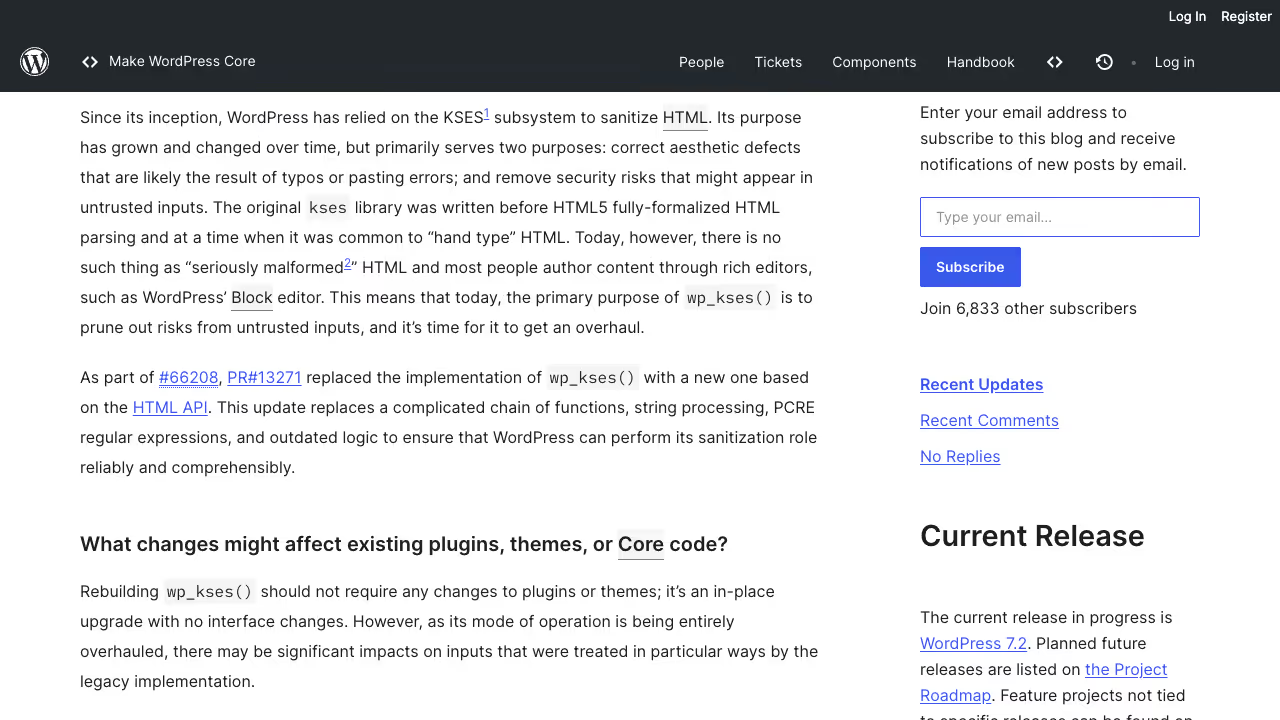
Escaping happens as late as possible, ideally at the moment the data is printed. The escaping reference names a function per context: esc_html() for text inside an element, esc_attr() for attribute values, esc_url() for href and src, esc_js() for inline JavaScript and esc_textarea() for textarea content. When some HTML must survive, wp_kses_post() keeps only the tags permitted in post content, and wp_kses() keeps only the tags and attributes you list. Choose the function by output context; that choice covers most of what a beginner needs to avoid cross-site scripting.
How to protect WordPress forms with nonces
A nonce is a token WordPress adds to forms and URLs to confirm that a request came from your site on purpose. The nonces documentation says they help protect against several types of attacks, including cross-site request forgery (CSRF). You create one with wp_nonce_field() inside a form, wp_nonce_url() for a link, or wp_create_nonce() when you need the raw value. You verify it with check_admin_referer() on admin screens, check_ajax_referer() in AJAX handlers, or wp_verify_nonce() anywhere else.
Two details catch beginners. A nonce is not checked for one-time use, so it does not stop replay attacks, and its default lifetime is one day, which in practice means between 12 and 24 hours. The documentation also says nonces should never be relied on for authentication, authorization or access control. Pair every nonce check with current_user_can() and the capability the action requires.
WordPress database tables every developer should know
Many beginners avoid the database for the first six months. That is the mistake. WordPress stores almost everything in wp_posts, wp_postmeta, wp_options, wp_users and wp_usermeta. Once these five tables make sense, every plugin and every theme stops being magic.
Practical drill: open wp shell (an interactive PHP console with WordPress loaded) and inspect a few rows. Find the post you just published. Look at its post_content. Look at its meta entries. Write one query that lists all custom-post-type entries by status. Twenty minutes of this teaches more than a week of plugin code reading.
How to debug WordPress with WP_DEBUG
Turn on debugging in wp-config.php on your local site from day one. The debugging guide describes five constants. WP_DEBUG switches on debug mode across WordPress and is off by default. WP_DEBUG_LOG writes errors to wp-content/debug.log (or a path you choose) and only works when WP_DEBUG is on. WP_DEBUG_DISPLAY controls whether errors are printed into the page HTML. SCRIPT_DEBUG makes WordPress load the unminified development versions of core CSS and JavaScript. SAVEQUERIES stores every database query with its execution time and calling function in $wpdb->queries, at a performance cost.
define( 'WP_DEBUG', true );
define( 'WP_DEBUG_LOG', true );
define( 'WP_DEBUG_DISPLAY', false );
This combination logs every error and shows visitors none of them. The guide does not recommend WP_DEBUG or the other debug tools on live sites, so keep them in local and staging environments. Keep tail -f wp-content/debug.log running in a second terminal while you work, and a PHP notice appears as soon as your code triggers it.
How to check PHP code against WordPress coding standards
WordPress has its own PHP coding standards, and the WordPressCS project turns them into PHP_CodeSniffer rules. Its README says installation through Composer is the only supported method:
composer config allow-plugins.dealerdirect/phpcodesniffer-composer-installer true
composer require --dev wp-coding-standards/wpcs:"^3.0"
vendor/bin/phpcs -ps . --standard=WordPress
WordPressCS needs PHP 7.2 or newer and ships several rulesets. WordPress-Core covers the core coding standards, WordPress-Docs adds the inline documentation rules, WordPress-Extra extends Core with recommended practices, and WordPress is the complete set. Run it on the first plugin from this guide; the warnings it prints teach the naming and formatting conventions on your own code instead of on examples.
How to use the WordPress REST API
The WordPress REST API has been in core since 4.7 in 2016 and is stable in 2026. By default, every public post type, every taxonomy and every comment is available at /wp-json/wp/v2/.... Custom post types opt in via 'show_in_rest' => true.
For a beginner, the REST API matters because:
- It is how the block editor talks to the back end (the editor itself is a REST client).
- It is the primary integration surface for headless front ends (Astro, Next.js).
- It is how external systems (a mobile app, an AI agent via MCP, a sync tool) read WordPress content.
Practical drill: hit https://your-local-site.localhost/wp-json/wp/v2/posts in a browser. Read the JSON. Adjust ?per_page=5&_fields=id,title,link. The REST API stops feeling abstract within ten minutes.
WordPress security and Core Web Vitals basics
Two areas where beginners get burned within the first year if ignored:
Security. Use strong admin passwords, 2FA from day one, a reputable security plugin (Wordfence, Kadence Security or hosting-level WAF), and a real backup solution. Never edit wp-config.php to commit secrets to a public repo. Do not install nulled plugins; the malware risk is real.
Core Web Vitals. Largest Contentful Paint, Interaction to Next Paint and Cumulative Layout Shift directly affect search rankings and user perception. Run PageSpeed Insights against your site weekly. The biggest beginner wins: optimise images (AVIF or WebP), avoid heavy page builders for performance-critical sites, and stay on a managed WordPress host that handles caching and CDN.
The WCAG 2.2, BFSG and EU Accessibility Act guide covers the accessibility side. The headless WordPress services pillar covers the performance ceiling.
How to learn WordPress development in your first month
A practical milestone list that beats any tutorial-only approach:
- Week 1: local environment, first block theme, first plugin, one published post.
- Week 2: a custom post type with three entries, a REST query that returns them, a custom block pattern.
- Week 3: deploy to a managed host, configure HTTPS, set up backups, add a basic security plugin.
- Week 4: write a single 1500-word blog post about something you learned and publish it.
By the end of the month you have shipped a real (small) site, written real (small) code, and have a public artefact. That is the entry point to professional WordPress work in 2026, not a portfolio of half-finished interactive-tutorial exercises that never left the sandbox.
What to learn after the WordPress basics
After the first month:
- Learn theme.json deeply by reading the theme.json reference.
- Learn one ecosystem plugin in depth (WooCommerce or Advanced Custom Fields).
- Add Tailwind v4 to the block theme via the Tailwind CSS for WordPress development guide.
- Move one of your sites to headless using Astro or Next.js per the headless WordPress services pillar.
- Read the release notes of every new WordPress version. The platform moves; staying current is the job.
Six months in, you are no longer a beginner. The path from there is specialisation: performance, security, headless, AI integration, EU compliance. WPPoland has worked in these areas since 2006; the careers page explains how it works with other senior developers and states that there are no open job listings.