Short answer: when a WordPress site stops working, start with what the visitor actually sees and which HTTP status code the server returns. A 500 with the message “There has been a critical error on this website.” is usually a plugin, a theme or the PHP version, and once the error also shows in wp-admin, WordPress emails the name of the culprit to the site admin. “Error establishing a database connection” points you to wp-config.php and to your host. The scheduled maintenance message is usually a .maintenance file left behind by an interrupted update. If none of that shows the cause, turn on logging to debug.log, disable plugins by renaming their folder and check the core files against checksums.
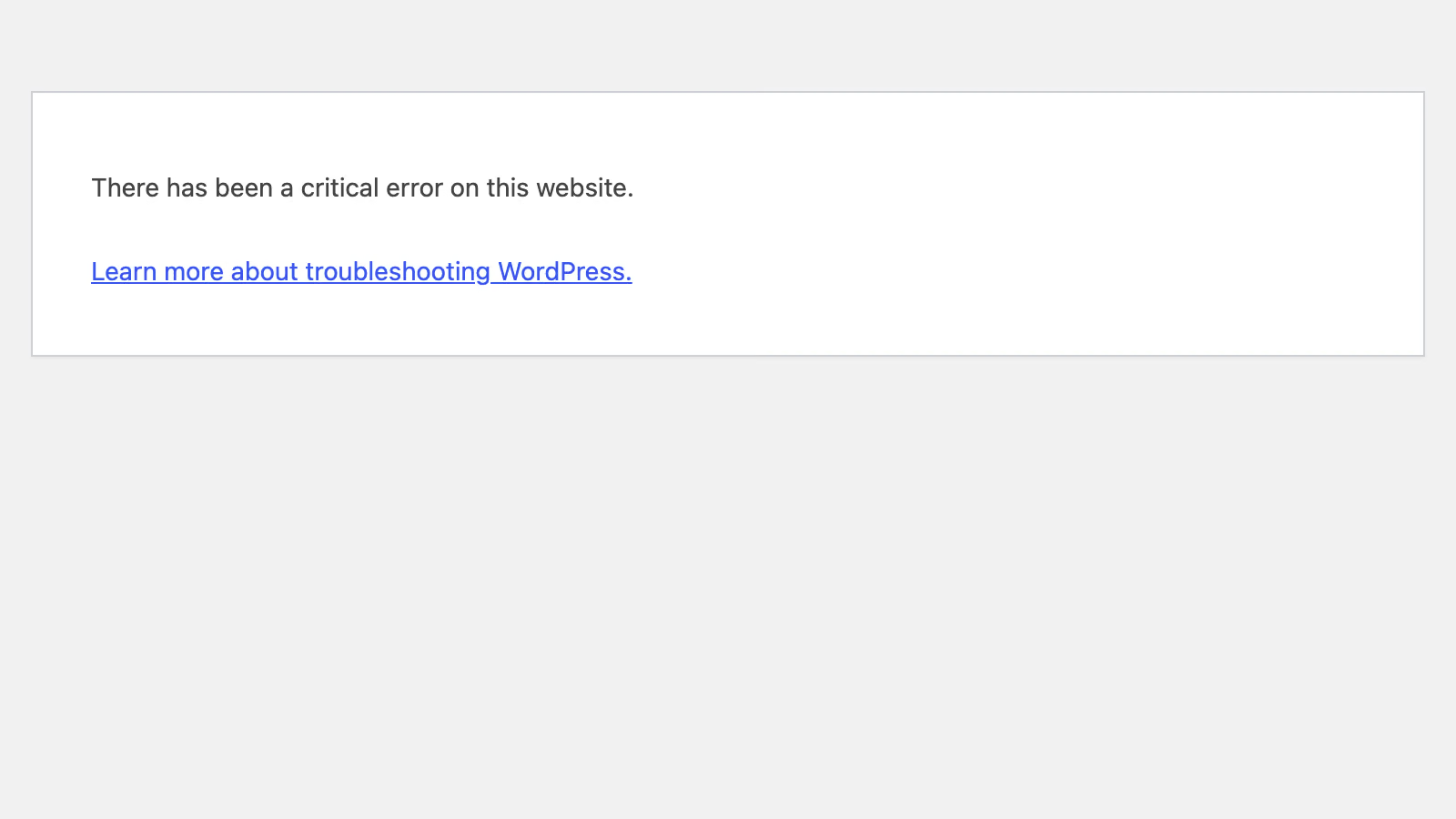 The screen after a fatal PHP error in WordPress 7.1 with the en_GB language pack. Own screenshot from WordPress Playground, error triggered deliberately in a test plugin, 28.11.2026.
This guide is for the business owner whose site has just gone down and for whoever looks after it. It follows the order in which I look for the cause myself. Each step either names the culprit or shortens the list of suspects, and none of them destroys data. I quote the messages from the British English (en_GB) language pack for WordPress 7.1 and the core behaviour from the 7.1.5 source code, because tutorials from earlier years often describe older versions.
Is my website down for everyone?
Check first in a private window and on a phone with Wi-Fi switched off. The full triage before you report an outage, with a symptom table and checks for the domain, DNS and certificate, is in the help centre. This post deals with what WordPress itself shows and how to read it.
The HTTP status code tells you the most. You can read it in the browser developer tools (the Network tab) or with one command in a terminal:
curl -sI https://yourdomain.co.uk/ | head -n 1The meaning of the 5xx codes is set out in the HTTP specification, RFC 9110, section 15.6. This is how I read them on a WordPress site:
| Code | What it means according to RFC 9110 | Where I usually look for the cause |
|---|---|---|
| 500 | the server met an unexpected condition that prevented it from fulfilling the request | fatal PHP error: plugin, theme, PHP version, broken .htaccess |
| 502 | a gateway or proxy received an invalid response from the server behind it | the PHP-FPM process crashed or was killed, the CDN cannot talk to the server |
| 503 | the server cannot handle the request for now because of overload or scheduled maintenance | .maintenance file, resource limit on the hosting plan, bot protection |
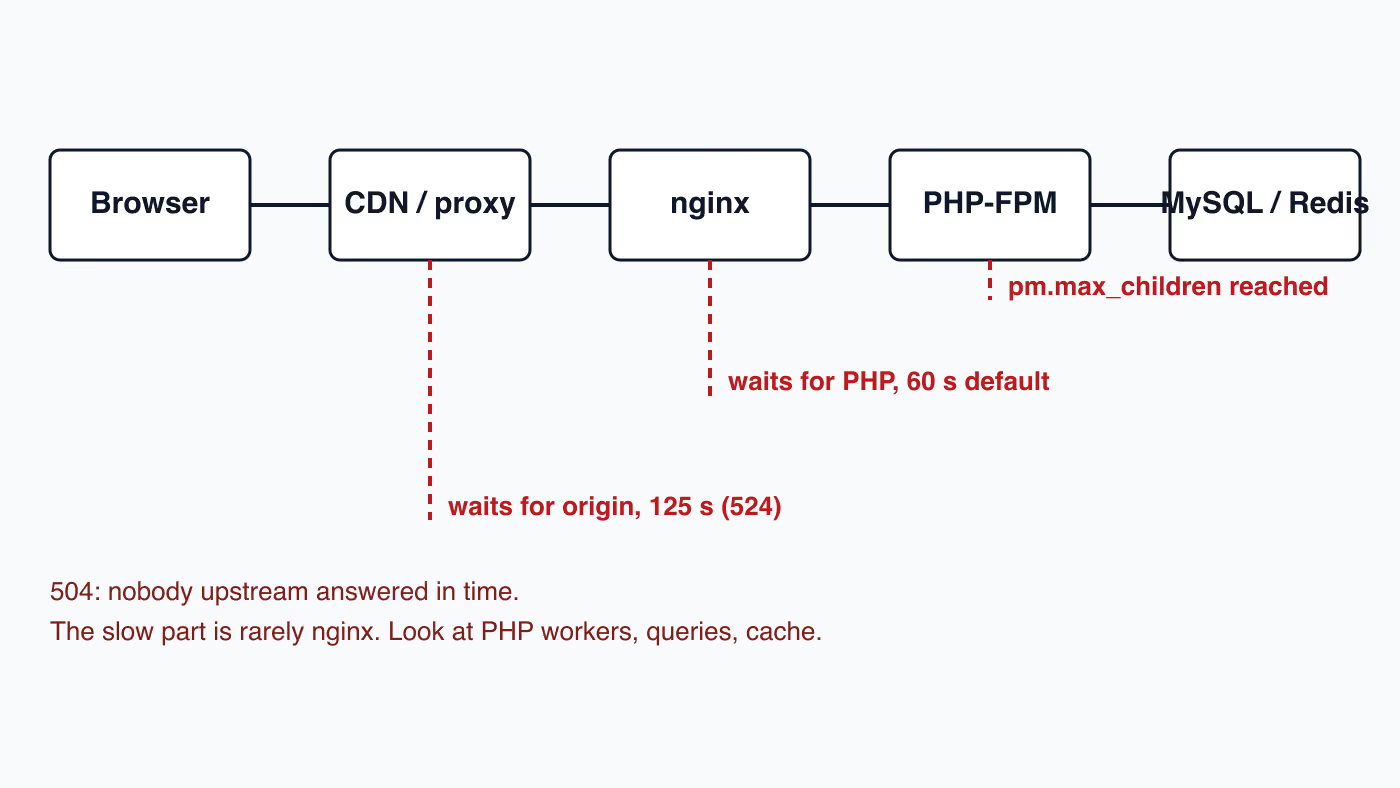
| 504 | a gateway or proxy did not get a timely response from upstream | slow database query, stuck cron job, external API |
I wrote a separate post on the 504: WordPress 504 error: hosting or site. If curl returns only a connection or certificate error, the problem sits in front of WordPress: DNS, the domain, the SSL certificate or the server. Then the first message goes to your hosting company and your domain registrar.
What does the WordPress critical error mean?
It is the message WordPress shows after a PHP error stops the page from loading. Since version 5.2 core has its own handling for these errors. In the 7.1.5 code the WP_Fatal_Error_Handler class catches errors of type E_ERROR, E_PARSE, E_COMPILE_ERROR, E_USER_ERROR and E_RECOVERABLE_ERROR, and sends the page with the message with HTTP status 500 (source, tag 7.1.5). On the public site the visitor sees only the basic version: “There has been a critical error on this website.” with the link “Learn more about troubleshooting WordPress.” The longer variant, “There has been a critical error on this website. Please check your site admin email inbox for instructions.”, appears only on protected endpoints, meaning wp-admin and the login page.
In the 7.1.5 code, WP_Recovery_Mode::handle_error() sends the recovery mode email only when the error happens on a protected endpoint and can be attributed to a plugin or theme (class-wp-recovery-mode.php, tag 7.1.5). An error seen only on the home page sends nothing. So after seeing the critical error I open /wp-admin/: if the error shows there too, WordPress emails the admin address with the name of the plugin or theme and a link to recovery mode (core team announcement, April 2019). An error in WordPress core itself triggers no email. The link logs you into a dashboard in which the faulty extension is paused for your session only. Visitors keep seeing the error until you deactivate or replace the plugin.
WordPress sends the next email of this kind only after a rate limit has passed, one day by default, and the link stays valid for at least as long (get_email_rate_limit). So if yesterday’s email went to an old address nobody reads, the next one will not arrive straight away. Your host or a security plugin can also switch this handling off entirely with the WP_DISABLE_FATAL_ERROR_HANDLER constant in wp-config.php. In that case you get a white screen instead of the message.
Error establishing a database connection
WordPress shows this message when it cannot connect to the MySQL or MariaDB server. In the en_GB pack it reads “Error establishing a database connection”. The administration handbook tells you to check four values in wp-config.php first: DB_NAME, DB_USER, DB_PASSWORD and DB_HOST (Common WordPress errors). Compare them with the database details in your hosting control panel. The database password sometimes changes during a migration or a plan change, and nobody updates the file.
When the details match, the problem is usually on the database server: too many connections, a full disk, an outage. Then the decision lies with your host, and a support ticket with the exact time of the first error gets a faster answer. If everything else works and this error keeps coming back, the handbook says to check whether the site has been compromised. The section on hacked sites below covers that.
Briefly unavailable for scheduled maintenance
This message comes from the .maintenance file, which WordPress creates in the root folder for the duration of an update and deletes when the update finishes. If the update stops halfway, the file stays behind. In the en_GB pack the visitor reads “Briefly unavailable for scheduled maintenance. Try again in a minute.” (the core English string ends with “Check back in a minute.”). In the 7.1.5 code the wp_maintenance() function then answers with status 503 and the header Retry-After: 600 (load.php, tag 7.1.5).
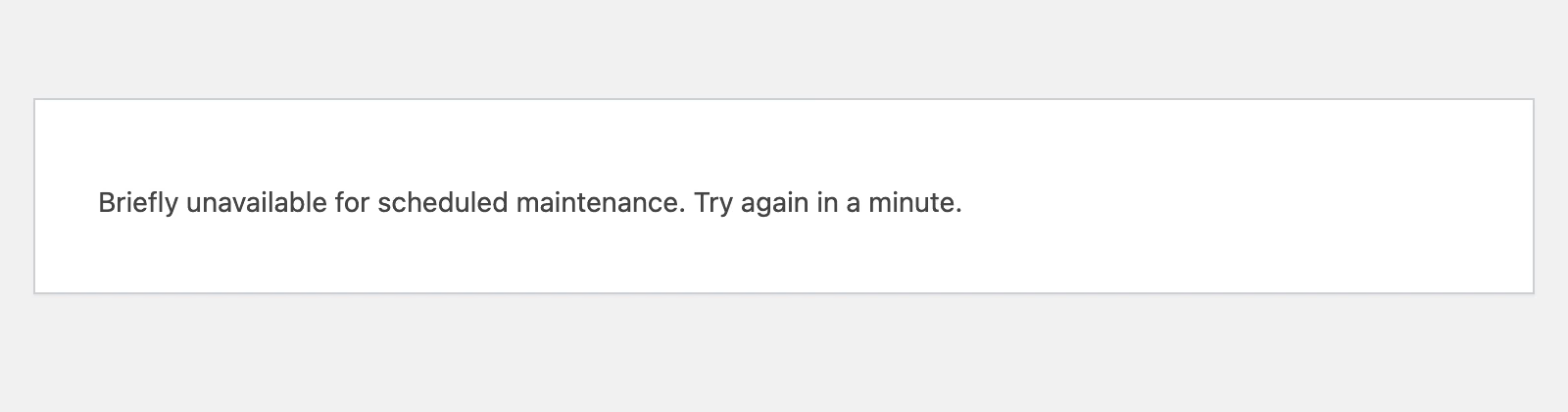 The maintenance mode message from the en_GB language pack for WordPress 7.1. Own screenshot from WordPress Playground, .maintenance file created by hand, 28.11.2026.
The 10-minute rule sits in wp_is_maintenance_mode() in the same load.php file: if the timestamp stored in the file is older than 10 minutes, WordPress considers maintenance over and loads the site normally. A message that stays up for hours therefore usually means something other than a leftover file, for example a plugin or the server serving its own maintenance page, or a “coming soon” plugin. You can delete the file itself over SFTP without any risk. Afterwards check in the dashboard whether the update completed, because an interrupted one may have left a plugin half replaced.
How to turn on WordPress debug mode
Add these constants to wp-config.php, above the line /* That's all, stop editing! */:
define( 'WP_DEBUG', true );
define( 'WP_DEBUG_LOG', true );
define( 'WP_DEBUG_DISPLAY', false );
@ini_set( 'display_errors', 0 );
WordPress starts writing errors to wp-content/debug.log, and visitors do not see them. The official administration handbook recommends this setup and adds that the debugging tools are not recommended on live sites, only locally and on staging (Debugging in WordPress). On a live site I therefore switch it on for a quarter of an hour or so: reproduce the error, read the log, switch it off. The debug.log file sits in a public folder, and unless the server blocks it, anyone can download it in a browser. It can contain server paths and fragments of data.
In the log I look for the last line with PHP Fatal error. The path in that line shows the source: wp-content/plugins/plugin-name/ points to a plugin, wp-content/themes/ to the theme, and wp-includes/ usually to a broken core update or a PHP version that is too old. The message Allowed memory size of ... bytes exhausted means the site ran out of memory, which I cover further down.
When WordPress does not load far enough to write anything, the server logs in your hosting account are what is left. Where they live depends on the host. On 34SP’s WordPress hosting, for example, the error logs are in /var/www/vhosts/yourdomain/statistics/logs/, and their documentation describes the php-error.log file there as the one that “contains errors generated by PHP” (34SP, WordPress logging).
How to disable plugins without dashboard access
Rename the wp-content/plugins folder, for example to plugins-off. You can do it over SFTP or with the file manager in your hosting control panel. WordPress cannot find the plugins and starts without them, and the administration handbook lists this as the first step for a white screen (Common WordPress errors). If the site comes back, restore the folder name and disable the plugins one by one by renaming their subfolders until the error disappears.
With SSH access you can do the same without touching the files. WP-CLI has the global options --skip-plugins and --skip-themes, which run a command without plugins or without the theme (WP-CLI documentation):
wp plugin list --skip-plugins --skip-themes
wp plugin deactivate plugin-name --skip-plugins
The WP-CLI documentation points out that code in the mu-plugins folder still loads despite --skip-plugins. Hosting companies and previous developers often put add-ons there, so that is where I look when disabling the regular plugins changes nothing. You test the theme the same way: rename the active theme’s folder in wp-content/themes, and WordPress falls back to a default theme if one is installed.
If the error appeared right after an update, see how to restore WordPress after a failed update, with or without a backup.
Which PHP version does WordPress need?
WordPress.org recommends PHP 8.3 or greater and MariaDB 10.11+ or MySQL 8.4+. The requirements page also says WordPress works on PHP from 7.4 and MySQL from 5.5.5, but those versions are past end of life and may expose the site to vulnerabilities (Requirements). According to php.net, PHP 8.2 has security support until 31 December 2026, PHP 8.3 until 31 December 2027, and PHP 8.6 was released on 19 November 2026 (Supported versions).
A PHP version change is a common start of an outage, in both directions. The host raises the version and an old plugin stops working, or someone rolls the version back and a new plugin needs a newer one. You change the version in your hosting control panel, and the option names differ between companies. At LetsHost in Dublin, on cPanel, you click the MultiPHP Manager icon, which lists every domain and subdomain with its PHP version, and pick the version from the drop-down (LetsHost, changing the PHP version). At 34SP you choose it from the “Version” drop-down menu (34SP, changing your PHP version). Before you switch, check in the panel which sites the change applies to. The error log will show whether the cause is code that does not work with the new version.
The second issue is memory. When wp-config.php has no WP_MEMORY_LIMIT constant and the host allows the limit to be changed, WordPress 7.1.5 sets 40M for a single site and 64M for a multisite network, and WP_MAX_MEMORY_LIMIT of 256M for the admin area (default-constants.php). With an Allowed memory size exhausted error I raise the limit only to get the site back. Then I look for what uses that much memory, because a higher limit hides the cause, for example a plugin that loads the whole order table on every page view.
How to check if WordPress has been hacked
Compare the core files with the WordPress.org checksums. WP-CLI does it with one command, and a second one checks plugins from the WordPress.org directory (wp core verify-checksums, wp plugin verify-checksums):
wp core verify-checksums
wp plugin verify-checksums --all
Any core file that differs from the original or should not exist is a warning sign. Plugins bought outside the WordPress.org directory cannot be checked this way, because WordPress.org has no checksums for them. For those, compare against the vendor’s package. Other symptoms I take seriously: redirects to unknown sites only for visitors arriving from Google, new administrator accounts, unfamiliar PHP files in wp-content/uploads, cron jobs nobody added.
Do I have to report a hacked website?
Sometimes, yes. If the hack touched personal data, for example customer accounts, orders or form messages, Article 33(1) of the GDPR applies. The controller notifies the supervisory authority of the breach “without undue delay” and, where feasible, not later than 72 hours after becoming aware of it. The exception covers breaches that are unlikely to result in a risk to the rights and freedoms of natural persons. A notification made after 72 hours has to give the reasons for the delay (GDPR, Article 33).
In Ireland the supervisory authority is the Data Protection Commission: section 10 of the Data Protection Act 2018 establishes it and section 11 makes it the supervisory authority for the GDPR (Irish Statute Book, section 11). In the UK, Article 33(1) of the UK GDPR keeps the 72 hours and now names “the Commission” as the body to notify: the word was substituted on 30 September 2026 by S.I. 2026/386 (legislation.gov.uk, Article 33). In both countries the 72 hours run from the moment you become aware of the breach, so a clean-up that takes days does not move the deadline.
For a repair job, Article 33(2) of the GDPR matters: the processor, for example the company that maintains the site, notifies the controller without undue delay. When I repair a site and see signs that data has leaked, I tell the owner straight away, before I finish the clean-up. Assessing the risk and deciding whether to notify is the controller’s job, meaning the business that runs the site. This article is not legal advice.
What to send when asking for a WordPress repair
WordPress prepares two things itself that shorten a repair. The first is the email with the recovery mode link. It goes to the admin address in the WordPress settings, which often belongs to a former employee or an agency from years ago. Check in the dashboard or in the database which address it is, and whether anyone reads it.
The second is the report under Tools, Site Health, Info tab. The “Copy site info to clipboard” button gathers the WordPress, PHP and database versions, the memory limits and the plugin list into one block of text you can paste into an email. It contains no passwords, but it does contain server paths, so send it only to the person you are asking to do the repair.
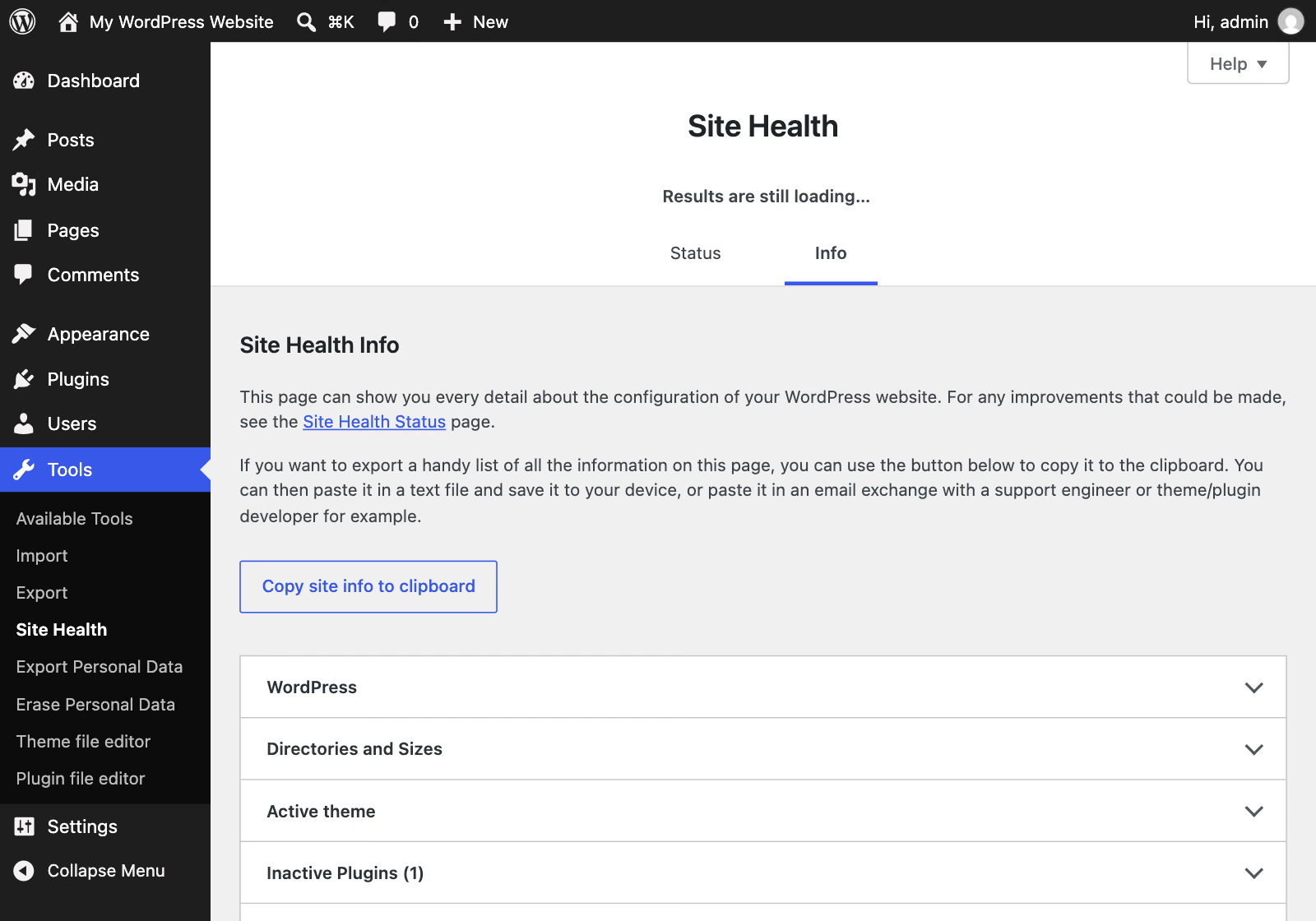 Tools, Site Health, Info tab in WordPress 7.1. The copy button puts the PHP version, memory limits, plugin list and theme into one block of text. Own screenshot from WordPress Playground, 28.11.2026.
The full list of what to put in a report, from the time of the outage to the last change before it, is the table in the help centre. Do not send passwords in the first message. Access is agreed once the scope is clear, ideally as a separate administrator account and a separate SFTP account that you delete when the work is finished.
The description of the problem reaches me by email, and on working days I reply within 24 hours. I do not arrange phone calls or meetings: the log, the HTTP status code and the Site Health report tell me more than a description over the phone. The scope of the service, including repair after a hack and after a failed update, is on the WordPress repair and technical support page.
In which order to look for the cause
From the cheapest test to the most expensive. This is my list when a site is down:
- HTTP status code and a check from another network. No code at all means DNS, the domain, the certificate or the server.
- Open /wp-admin/ and check the admin inbox: the recovery mode email with the plugin or theme name.
- The log: debug.log for a quarter of an hour, or the PHP error log from the hosting account.
- Plugins: rename the folder, then disable them one at a time. Finally, mu-plugins.
- Theme: switch to a default theme by renaming its folder.
- PHP version and memory limit: compare with what was set before the outage.
- Database: the details in wp-config.php, then the state of the database server at your host.
- Core files:
wp core verify-checksums, and if a hack is suspected, a full review and an assessment of whether the breach has to be reported.
I restore a backup only once I know the cause. Restoring yesterday’s backup deletes today’s orders and form messages, and if the cause was a vulnerability, the site comes back with the same hole. So I decide whether to fix in place or restore after reading the log.
Last updated: 28.11.2026. WordPress behaviour checked in the 7.1.5 source code and in the en_GB 7.1 language pack.