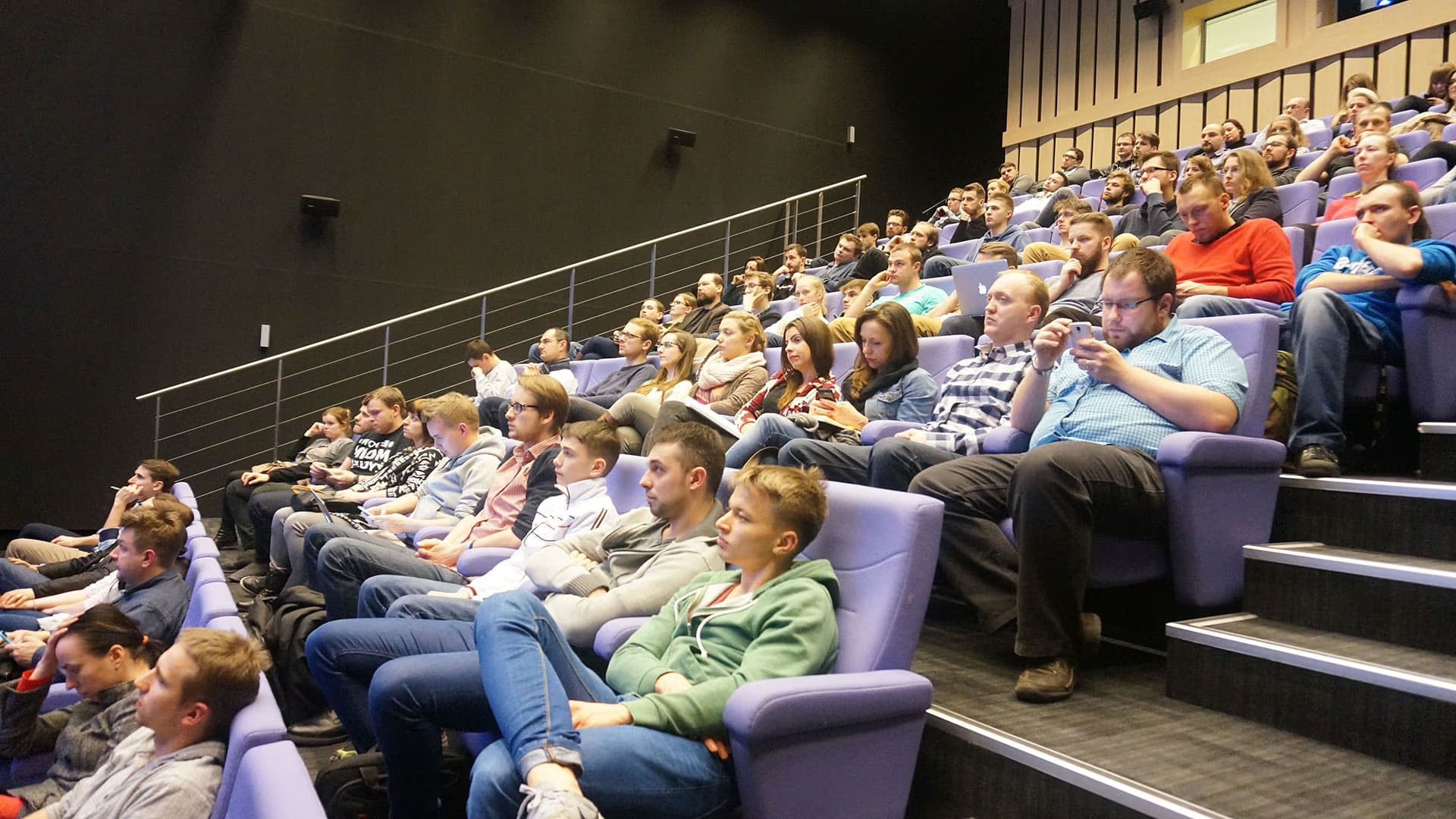
WordPress for beginners was a free, two-day practical workshop held at PPNT Gdynia (Pomorski Park Naukowo-Technologiczny) on 20 and 21 October 2014, starting at 15:00 each day, 10 hours in total. The trainer was Mariusz Szatkowski. The event listing is still online on Crossweb, which now marks it as an event that has already taken place.

This page keeps the original announcement and the full agenda, then checks each agenda block against the WordPress of today. Several tools and names from the 2014 programme have changed, and two of the items no longer exist in the form they were taught.
PPNT WordPress workshop in Gdynia, the event record
| Detail | Value |
|---|---|
| Event | PPNT: WordPress dla początkujących (WordPress for beginners) |
| Type | Workshop, categories IT and Startup, topics CMS and WordPress |
| Dates | 20 and 21 October 2014 (Crossweb lists Monday 20.10.2014) |
| Start time | 15:00 |
| Length | 2 days, 10 hours |
| Language | Polish |
| Admission | Free |
| Venue | PPNT Gdynia, Tricity |
| Organiser | Strefa Startup PPNT |
| Trainer | Mariusz Szatkowski |
The organiser described the workshop on Crossweb like this:
“WordPress is one of the most popular, and in some opinions the best, content management systems, intended mainly for running blogs. PPNT invites you to practical workshops during which you can learn the basics of WordPress and learn to install and optimise a website on your own.”
PPNT, Crossweb event listing, own translation
The Pomeranian Science and Technology Park Gdynia describes itself as the largest hub in Poland for organisations working where business, science and technology meet. Startup workshops like this one were part of its event programme.
Topics announced for the WordPress beginner workshop
The announcement listed five topics:
- Introduction to WordPress
- What does what and how to move around WordPress: front end and back end, standard elements of a website
- Setting up the first blog: page hierarchy, templates, content optimisation
- Building menus, adding media
- Sidebars and widgets, CSS, responsive themes, plugins
WordPress course day 1 agenda
| Time | Topics |
|---|---|
| 15:00-15:45 | About me, training goals. Agenda, what you will learn, which practical skills you will gain. Part I, introduction to WordPress: what a CMS is, what WordPress is, history of WP, why choose WordPress, WordPress in numbers, what else you can get out of WP, different uses of WordPress, why WordPress is so popular, WordPress vs the competition, WordPress.org vs WordPress.com, WordPress for your needs (wordpress.com versus self-hosted WordPress), full control at your own risk, opening a hosting account, setting up a site on wordpress.com, a quick tour of the WordPress.com dashboard |
| 16:00-16:45 | Where a webmaster’s life begins: WordPress on your own hosting. What we need, a simplified WordPress architecture, before you start, 7 deadly sins of working with and installing WP, the most common installation errors, hosting login details |
| 17:00-17:45 | What is what and how to move around WordPress. The recipe, meaning the installation steps: installing WordPress on your own hosting, configuring an FTP connection in Total Commander, uploading the WordPress installation files, creating a MySQL database, running the WordPress installer, checking that the installation is correct, an alternative quick installation, errors |
| 18:00-18:45 | Optimising our site. Domain name, blog name and tagline (this really matters), copywriting rules, optimisation (more tomorrow), the power of links, “I have no content, what now”, link building, duplicate content, bans, filters and penalties, SEO plugins |
| 19:00-20:00 | Configuration and media. How to configure WordPress, menus (how to build one, is a second menu possible), why good navigation matters, you do not have to show everything in the menu, multi-level menus, how to add a photo, how to build a gallery, before you add your first photo, where to get free photos, how to embed a video |
WordPress course day 2 agenda
| Time | Topics |
|---|---|
| 15:00-15:45 | Inside: themes and templates. Posts and categories, grouping posts well (categories and tags), links, pages, hierarchy and templates, posts vs pages, where to get a first theme (installation demo), templates for posts, content builder: installing MiniMax Page Layout Builder |
| 16:00-16:45 | Sidebars, widgets, themes, HTML5 and CSS3, responsiveness. Projects grow more complex while the day does not get longer, HTML5 and CSS3, sidebar, widgets, header and footer, themes and how to choose the best one, responsiveness |
| 17:00-17:45 | Plugins. Is it still the same WordPress, a short tour of the admin panel, an overview of the most popular plugins, where to get plugins, is it worth spending some money, the white screen of death, the biggest problems with plugins |
| 18:00-18:45 | Things that happen to a CMS. Moving content from wordpress.com to self-hosted WordPress, what moves and what does not, moving WP, migrating WordPress from one account to another, how to change a theme (child themes), how to make a child theme, notes on child themes, changes to appearance or to functionality (a short look at theme structure), the My Custom CSS plugin, the What The File plugin, backups and what to use for them, Multisite, and if not Multisite, then what |
| 19:00-20:00 | Intermediate WP use, security, analytics, optimisation. Custom post types, taxonomies, custom fields to change how pages and posts look, user roles and access, webmaster tools, GWT, browser tools and webmaster extensions, speeding up the site (performance and monitoring), protecting the site against crackers, statistics and basic information about visitors, analytics |
What changed in WordPress since the 2014 agenda
The programme was written for WordPress 4.0 “Benny”, released on 4 September 2014, about six weeks before the workshop. Its headline changes were a media library shown as an endless grid with a details preview and easier embeds. Most of its building blocks are still in core, but the editor, widgets, themes and error handling work differently now. The sections below follow the agenda order and cite the release notes or handbook page for each change.
WordPress in numbers in 2026
Day 1 had an item called “WordPress in numbers”, and day 2 asked where to get plugins and whether paying for them is worth it. Current figures, checked on 14 October 2026:
| Figure | Value | Source |
|---|---|---|
| Share of all websites | 40.0% | W3Techs |
| Share of websites with a known CMS | 58.5% | W3Techs |
| Free plugins in the official directory | over 75,000 | WordPress.org Plugins |
| Free themes in the official directory | over 15,000 | WordPress.org Themes |
W3Techs updates its survey daily, so the share figures move. The plugin directory now has separate Community and Commercial listings, and the theme directory links to a list of commercial theme companies. That answers the 2014 question of where to get paid add-ons: start from the official directory, where each listing shows its last update and the WordPress version it was tested with.
WordPress hosting requirements today
The day 1 block “what we need” still comes down to a host with PHP and a database. The current WordPress requirements page recommends PHP 8.3 or greater, MariaDB 10.11 or greater or MySQL 8.0 or greater, and HTTPS support. It names Apache or Nginx as the recommended web servers, and its copy-paste request to a host also lists the mod_rewrite module for Apache. HTTPS was not on the 2014 checklist. Today it is one of the three recommended requirements.
How to install WordPress manually
The manual install taught on day 1 (FTP upload, MySQL database, installer) matches the official installation guide step for step: download and extract, create a database, set up wp-config.php, upload the files, run the install script. The guide still says installation usually takes less than five minutes and that many hosts offer tools that install WordPress automatically. That is the “alternative quick installation” from the agenda. The order of the steps has not changed in more than ten years.
Menus, custom post types and taxonomies
Menus, custom post types and taxonomies were already core features in 2014. WordPress 3.0 “Thelonious”, released on 17 June 2010, gave theme developers new APIs for menus (“no more file editing”), post types and taxonomies, and it merged WordPress MU into core as the new multisite feature. The day 1 menu block and the day 2 block on custom post types therefore describe features that still work the same way, now also editable as blocks in block themes.
How to change a theme without losing your changes
The child theme advice from day 2 is still the official answer. The Theme Handbook describes child themes as extensions of a parent theme that let you modify an existing theme without editing its code directly. A child theme needs its own folder and a style.css file, and it can add templates, patterns and a functions.php. Updates to the parent theme then do not overwrite your edits.
Custom CSS without a plugin
The agenda named a custom CSS plugin. Since WordPress 4.7 “Vaughan”, released on 6 December 2016, core lets you add custom CSS in the Customizer and see the result in a live preview. For small visual changes a separate CSS plugin is no longer needed.
The block editor replaced the classic editor and page builders
The 2014 programme installed MiniMax Page Layout Builder as a content builder. Its page in the WordPress.org plugin directory is now closed at the author’s request (wordpress.org plugin API, checked on 14 October 2026). Layouts are now built in the block editor. WordPress 5.0 “Bebo”, released on 6 December 2018, introduced the new block-based editor as “the first step toward an exciting new future with a streamlined editing experience across your site” (wordpress.org release post).
Sidebars and widgets as blocks
The day 2 block on sidebars and widgets taught the classic drag-and-drop widget screen. WordPress 5.8 “Tatum”, released on 20 July 2021, brought blocks to the widget editor and to the Customizer, so widget areas now accept any block with a live preview.
Full site editing and block themes
Headers, footers and templates, which the 2014 programme edited in theme files, can now be changed in the site editor. WordPress 5.9 “Joséphine”, released on 25 January 2022, introduced full site editing and Twenty Twenty-Two, the first default block theme in the history of WordPress. Choosing a theme now also means choosing between a classic theme and a block theme.
White screen of death and recovery mode
The plugin block ended with the white screen of death, the blank page left by a fatal PHP error. WordPress 5.2 “Jaco”, released on 7 May 2019, added PHP error protection with better handling of the white screen of death and a recovery mode that pauses the plugin or theme causing the error, so an administrator can log in and fix it. The same release added two Site Health pages that help debug common configuration issues, building on the Site Health features introduced in WordPress 5.1.
Moving a site from WordPress.com to self-hosted WordPress
The migration block from day 2 still works through the built-in importer. The Importing Content documentation describes the steps: go to Tools, then Import, install the WordPress importer, choose the WXR file exported from the source site, and map each author to an existing or new user. Posts, comments and categories come across, and attachments can be imported too. The WordPress Importer plugin is still maintained (version 0.9.6 at the time of checking).
WordPress Multisite setup
The Multisite item is still set up the same way. The Create a Network guide says to add define( 'WP_ALLOW_MULTISITE', true ); to wp-config.php, which enables the Network Setup item in the Tools menu, where you create the network.
WordPress user roles
The Roles and Capabilities documentation lists six predefined roles: Super Admin, Administrator, Editor, Author, Contributor and Subscriber. Each role is a set of capabilities such as publish_posts, moderate_comments and edit_users. The documentation summarises them like this:
- Super Admin: access to the network administration features of a Multisite network and to all other features
- Administrator: access to all administration features within a single site
- Editor: can publish and manage posts, including the posts of other users
- Author: can publish and manage their own posts
- Contributor: can write and manage their own posts but cannot publish them
- Subscriber: can only manage their profile
For a beginner site this means giving each person the lowest role that covers their work.
Google Webmaster Tools became Search Console
The agenda item GWT means Google Webmaster Tools. Google renamed it on 20 May 2015, seven months after the workshop. The announcement on the Google Search Central blog is titled “Announcing Google Search Console - the new Webmaster Tools”. Google explained that the traditional idea of the webmaster reflected only some of its users, who also included hobbyists, small business owners, SEO experts, marketers, programmers, designers and app developers, so it rebranded the product to include everyone who cares about Search. Anyone following the 2014 notes today should look for Search Console.
Which plugins from the 2014 agenda still exist
What The File, the plugin from day 2 that shows which template file renders the current page, is still in the WordPress.org plugin directory. At the time of checking it was at version 1.6.1, last updated on 19 February 2026. MiniMax, as noted above, is closed.
Which parts of the 2014 WordPress course still apply
The order of the programme still works: hosting and installation, settings and media, content structure, themes, plugins, migration, then roles and analytics. The installation steps, menus, posts and pages, categories and tags, child themes, custom post types, the importer and the Multisite setup are taught the same way today. The editor, the widget screen, theme editing, custom CSS, error recovery and the name of Google’s webmaster tool have changed. Anyone teaching from these notes now has to replace those blocks. If you need help running WordPress beyond the beginner level, see WordPress developer.