I run WordPress updates as part of maintenance on a fixed schedule: first a full backup, then the update on a staging copy of the site, tests, a comparison of screenshots from before and after, and only then the release to the live site in an agreed window. I do not install every new version the moment it appears. Critical security fixes jump the queue, and they also go through staging.
This page covers how often I update what, how a single round runs, what I do when something stops working after an update, and how updates work in a shop with integrations, on a page builder and on systems other than WordPress. The full maintenance service, with backups and monitoring, is described on the WordPress website maintenance page.
How often I update WordPress
The schedule for one site. For a shop I set the windows separately.
Weekly
- Minor fixes and security releases for core, plugins and themes
- Updates through WP-CLI on a staging clone
- Tests of the main paths and screenshot comparison
- Release to the live site in the agreed window
Monthly
- Review of major plugin versions and their changelogs
- Decision: update now or hold the version back
- Review of administrator accounts
- Core Web Vitals measurement after the changes
Quarterly and twice a year
- Quarterly: review of the plugin list and removal of abandoned plugins
- Twice a year: security review of file integrity, administrator accounts, capabilities and exposed endpoints
- Twice a year: comparison of staging with the live site
- PHP version upgrade: on plan, once the plugins and theme are ready
Security updates outside the weekly cycle
A critical security fix does not wait for the weekly round. It goes first, on its own, by the same route: backup, staging, test, release. The exact window for such fixes is written into the quote, because it depends on the reaction time your plan includes.
I learn about vulnerabilities from vulnerability databases, including the Patchstack database and WPScan. When a flaw appears in a plugin you run, I check whether a fixed version exists and whether the flaw affects your configuration.
The WordPress security team is more than 50 trusted experts, including lead developers and security researchers. The same page says that only the latest version of WordPress is officially supported, and that the team backports fixes to older versions as a courtesy. A site left several versions behind can end up without a fix.
How one round of updates runs
The same order for core, plugins, themes and PHP. Only the scope of the tests changes.
Full backup
Before any change I take a full backup of the database and files. It is the point I return to if something goes wrong on the live site.
Update on staging
Updates go to a clone of the site first, through WP-CLI. Major plugin versions go only after I have read the changelog.
Tests on the clone
I test the main paths through the site: forms, login, and in a shop the basket and payment. If a test fails, the change goes no further.
Screenshot comparison
I take screenshots of agreed pages before and after the update and compare them. A shifted layout, a missing button or a different font shows up here before a visitor sees it.
Release in a maintenance window
The change goes live in an agreed window, with a snapshot and a rollback plan ready.
Watching after release
For 24 hours after release I watch closely for side effects. Uptime monitoring checks the site every 1 to 5 minutes.
Entry in the report
Updates, regressions found on staging and any rollbacks go into the monthly report.
An example from this year: WP Rocket 3.23.2.2 went onto the clone before I moved a site to WordPress 7.1. The fault and the workaround are in WP Rocket, the WordPress 7.1 fatal error and Cloudflare.php.
Screenshot comparison after an update
A functional test checks that the form sends and the basket accepts a product. It will not notice that a theme update has put the header over the menu on a phone, or that the page builder has changed the spacing in the pricing section. That is why after every update I compare screenshots of selected pages from before and after the change. We agree the list of pages at the start of maintenance: the home page, the main service pages, the contact form, and in a shop a product page, the basket and checkout.
When the comparison shows a difference, I check whether it comes from a planned change. If it does not, the update stays on staging while I find the cause. Only a version that looks the same, or differs in a way you know about, goes live.
PHP version upgrades as part of maintenance
Moving to a newer PHP version is part of maintenance, with no separate quote. I plan it ahead because it depends on three things: whether the host offers the newer version, whether every plugin and the theme support it, and whether the site’s own code uses functions that newer PHP has removed. I first run a clone of the site on the newer PHP, then go through the tests and the screenshot comparison, and only then change the version on the live site, in an agreed window.
WordPress recommends PHP 8.3 or greater, MariaDB 10.11 or greater or MySQL 8.0 or greater, and HTTPS support. According to the WordPress.org version check service, the minimum PHP version for the current WordPress is 7.4. I combine a PHP upgrade with a review of the plugin list, because a plugin that has not been updated for a long time is the first suspect when something fails on the newer version.
What breaks after an update and what I do about it
The most common symptoms after a core, plugin, theme or PHP update.
- Symptom: Critical error or a white screen after a plugin update
- What I doI restore the state before the change from the snapshot, look for the cause on the clone and release the fixed version in the next window.
- Symptom: A page looks different from before the update
- What I doScreenshot comparison stops this on staging. If the difference reached the live site, I roll the update back and fix the styles or hold the version.
- Symptom: The basket or payment in the shop stops working
- What I doI do not release a change that failed the basket test. If the fault appears only on the live site, I roll back and return to staging.
- Symptom: Orders stop reaching the ERP or the accounting package
- What I doI test the data exchange between the shop and the other system on staging and hold the connector version until the data goes through correctly.
- Symptom: A new plugin version needs changes in the theme code
- What I doI hold the version and describe what needs rebuilding. The rebuild is outside maintenance and gets its own quote.
- Symptom: The plugin author has stopped developing the plugin
- What I doAt the quarterly plugin review I propose a replacement or removal.
- Symptom: A plugin needs a newer PHP version than the server runs
- What I doI plan the PHP upgrade and test it on staging. That is part of maintenance.
- Symptom: The site changed overnight without anyone deciding to change it
- What I doI check which automatic updates are switched on and set them so that critical parts go through staging.
Updating a WooCommerce shop with payments, ERP and e-invoicing
In a WooCommerce shop an update touches more than the shop itself. The payment gateway, the shipping plugin, the ERP connector and the invoicing plugin each have their own authors and their own release rhythm, and each one talks to a system outside your server. After updating such a connector I check on staging that data still flows both ways: the order reaches the ERP, the stock level comes back to the shop, the invoice is created.
E-invoicing is a good example for UK and Irish shops. HMRC plans to require e-invoices for all VAT invoices from April 2029, and in Ireland large corporates must issue them from 1 November 2028, with every business able to receive them from that date. WooCommerce does not issue structured e-invoices itself, so a plugin, a Peppol access point or the accounting package does it, as I describe in e-invoicing in WooCommerce for the UK and Ireland. Updating that connector goes through staging like any other, and the test includes issuing a test invoice in the provider’s test environment. I describe how a shop connects to other systems in the WooCommerce ERP integration guide and the WordPress API-first guide.
I test payment gateways with the basket, details, delivery and payment path, without placing a real order. A shop that needs this all the time, not only after updates, runs on the Store Reliability Plan. On that plan the update rhythm depends on the level: monthly updates through staging, updates every two weeks, or a weekly update window.
Typical case: a shop with a payment gateway and an accounting connector
A typical shop that owners bring to me has a payment gateway, a shipping plugin, an invoicing plugin linked to the accounting package and a dozen or so other plugins. In the same week WooCommerce and the payment gateway can both get an update. In that week I update them separately: WooCommerce first, then the basket and invoice test, then the gateway and the test again. If something goes wrong, it is clear at once which change caused it.
Updates on a page builder site
Sites built with Elementor, Divi or WPBakery carry an extra layer to update: the builder itself, its add-ons and often a separate theme. The builder stores the page layout in its own format, so a builder update can change the look of many pages at once. I compare the builders in Gutenberg vs Elementor, Divi and WPBakery.
A typical company site with 30 plugins and a page builder gets several updates in most weeks. On a site like that the screenshot comparison does most of the work, because a functional test passes even when a section on the home page has fallen apart.
Update WordPress yourself or hand it over
The answer depends on what breaks on your site when an update fails.
You have a simple site with a few plugins, a working backup and time to look through the site after an update.
You can update it yourself. Take a backup before every update and leave automatic minor core updates on.
The site runs on a page builder and has dozens of plugins.
Updates through staging with screenshot comparison, as part of company website maintenance.
You run a shop with payments, an ERP or e-invoicing.
Updates with basket and data exchange tests, on the Store Reliability Plan or shop maintenance.
The site is several WordPress or PHP versions behind.
An update has already broken the site and you have no maintenance contract.
WordPress automatic updates compared with managed updates
WordPress can update itself. According to the administration handbook, existing installations receive minor core updates automatically by default, and fresh installations created on WordPress 5.6 or later receive both minor and major ones. The WP_AUTO_UPDATE_CORE constant in wp-config.php changes this: 'minor' leaves only minor updates on, and true turns them all on.
Plugins and themes work differently. Since WordPress 5.5, administrators opt in to automatic updates plugin by plugin and theme by theme. The same page says WordPress runs auto-updates twice a day and relies on WP-Cron to carry them out.
An automatic update installs the new version with no backup and no staging test. For minor core fixes that is an acceptable risk. For a shop, a payment plugin or a plugin the order form depends on, the risk is too high. In maintenance I therefore leave automation where the change is small and handle the critical parts by hand through staging.
Bringing a site back up to date after a year without updates
A typical starting point: a company site nobody has updated for a year, with dozens of plugins, an older PHP version and one backup from a few months ago. On a site like this I do not update everything at once, because if something fails there is no way to tell which change caused it.
I start with the onboarding audit, which is included in the first month: a list of plugins with versions, a check of which ones are still developed, the PHP version, and whether the existing backup restores. Then I take a fresh full backup and a staging clone. On the clone I update in batches: core first, then plugins from the simplest to those the form or the shop depends on, and the theme last. After each batch come tests and the screenshot comparison. Abandoned plugins get a replacement or go. I plan the PHP upgrade as a separate step once all plugins are current.
Only when the clone passes every test do I move the changes to the live site in an agreed window. From then on the site joins the ordinary weekly rhythm. If a part turns up along the way that needs new code, I describe it and quote it separately.
Updates on a Multisite network
On a WordPress Multisite network, plugins and themes are installed once for the whole network, so updating them affects every site at once. Each site may still use a plugin differently: one has its order form on it, another only a banner. On the network’s staging copy I therefore test the main paths on every site that uses the plugin, and the screenshot comparison covers pages from several sites. A Multisite network is priced individually, depending on the number of sites and the requirements.
Rolling out a major WordPress version
A major core version such as WordPress 7.1 changes more than a patch release and exposes plugin incompatibilities more often. According to the WordPress.org version check service, the current version is 7.1.3 (as of 28 October 2026). I never install a major version on release day. First I check on staging that the plugins and theme work with it, compare screenshots and read the changelogs of plugins that have not yet declared compatibility. The major version goes live in an agreed window once the clone passes the tests.
The WP Rocket 3.23.2.2 fault with WordPress 7.1, mentioned above, came to light on such a clone. When a single plugin blocks a major version, I keep the site on the previous branch until the author releases a fix or I find a workaround, and I record that in the report.
What the report says about updates
Every update round leaves a trace in the monthly report: what was updated, which regressions showed up on staging, which versions I held back and why, and whether any change was rolled back from the live site. After a failure you can see what changed on the site and when, and if you ever switch maintenance provider you have a history to hand over.
Code changes during updates
Sometimes an update needs a small fix in the site’s own code: in a child theme, in a plugin written for the business, or in a function that stopped working on newer PHP. I keep every such change in version control, so it is clear what changed, when and why, and it can be reverted. I check the code against the WordPress Coding Standards with PHP_CodeSniffer and the WPCS rules, and static analysis with PHPStan catches type errors and calls to functions newer PHP no longer has. Before release I review my own change again, separately from writing it. A larger rebuild remains outside maintenance and gets its own quote.
Drupal, TYPO3, Laravel and Symfony updates
I use the same pattern (backup, staging, tests, window, rollback plan) on systems other than WordPress. The tools and the release rhythm differ.
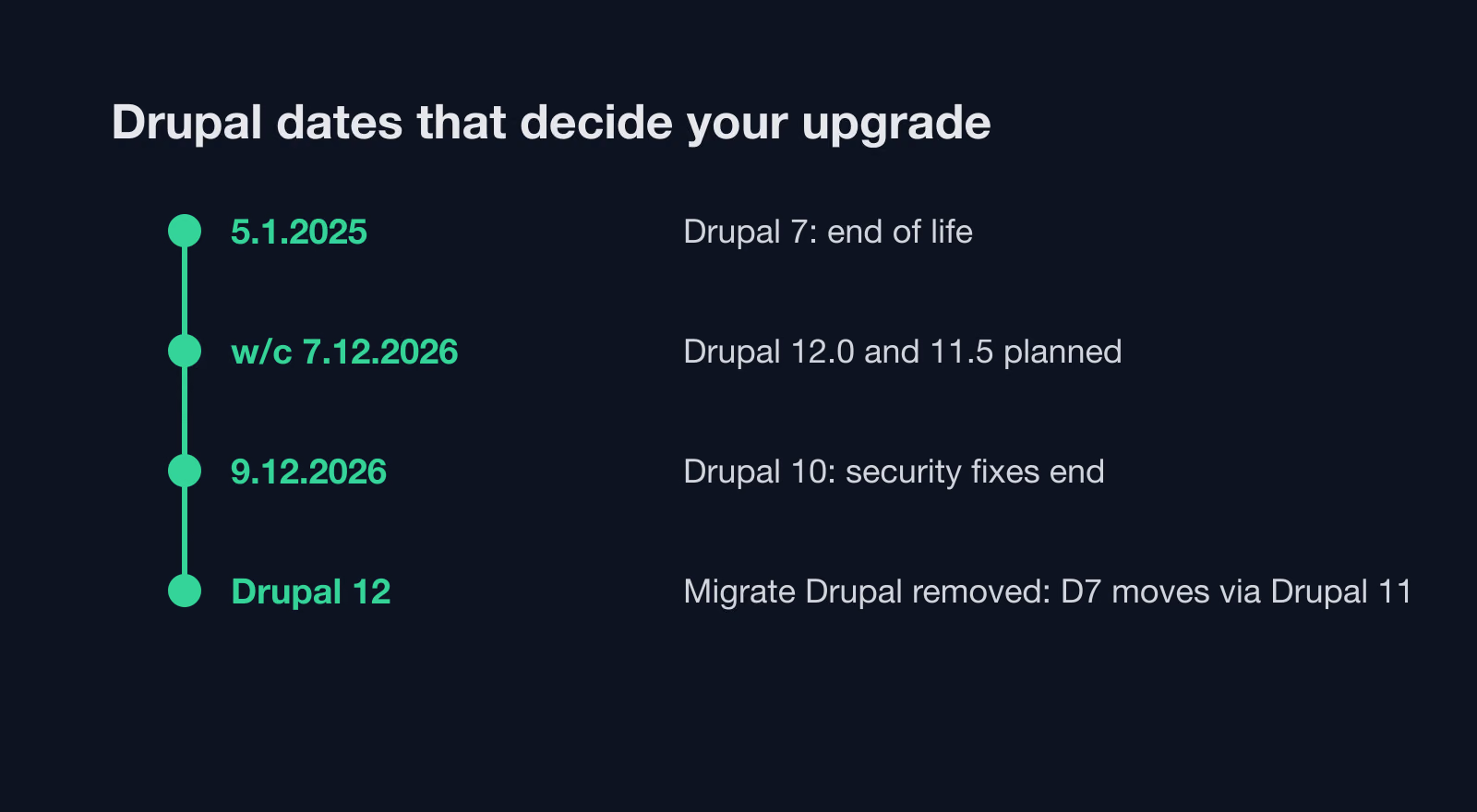
I update Drupal through a repeatable process built on Composer, with deployments through Drush. Drupal 7 has had no security support since 5 January 2025, and Drupal 10 loses it on 9 December 2026. What that means for a Drupal 10 site is covered in Drupal 10 end of life: upgrade or migrate.
In TYPO3 the moves between LTS versions matter most. Free support for TYPO3 12.4 ended on 30 April 2026, so a site on that version needs a plan to move to 13 or 14 LTS.
A Laravel application can get patch releases as often as weekly, and each major version gets two years of security fixes. Fixes reach the live server within days, together with Composer dependency updates and a composer audit run, always on a test server first. Symfony 6.4 receives bug fixes until November 2026 and security fixes until November 2027, which is why many projects start with a plan to move to 7.4.
What managed updates do not include
In maintenance I update core, plugins, themes and the PHP version. Outside maintenance are rebuilding a part that needs new code after an update, large changes to the theme or site architecture, building new integrations and moving to another system, for example a migration to Next.js or Astro. That work gets its own quote and starts once you confirm it. What maintenance itself costs is on the WordPress maintenance cost page.
If the site is already down after a failed update and you have no maintenance contract, start with WordPress repair. If unfamiliar files, redirects or a Google warning appeared after an update, go to the WordPress malware removal page.
Next step: send the site address and the list of plugins you consider critical. I reply with how I would schedule their updates and what maintenance would cost.